S3 Architecture Deep Dive
Note: I came across this excellent article while researching S3 storage: AWS S3 Deep Dive by Joud Wawad on Medium. It’s incredibly detailed and well-written, so I saved it here on my blog for future reference.
Amazon Simple Storage Service (Amazon S3) is an object storage service that offers industry-leading scalability, data availability, security, and performance. Companies of all sizes and industries can use Amazon S3 to store and protect any amount of data for a range of use cases, such as data lakes, websites, mobile applications, backup and restore, archive, enterprise applications, IoT devices, and big data analytics. Amazon S3 provides management features so that you can optimize, organize, and configure access to your data to meet your specific business, organizational, and compliance requirements.
At a high level, storage systems fall into three broad categories:
- Block storage
- File storage
- Object storage
Block storage
Block storage came first, in the 1960s. Common storage devices like hard disk drives (HDD) and solid-state drives (SSD) that are physically attached to servers are all considered as block storage.
Block storage presents the raw blocks to the server as a volume. This is the most flexible and versatile form of storage. The server can format the raw blocks and use them as a file system, or it can hand control of those blocks to an application. Some applications like a database or a virtual machine engine manage these blocks directly in order to squeeze every drop of performance out of them.
Block storage is not limited to physically attached storage. Block storage could be connected to a server over a high-speed network or over industry-standard connectivity protocols like Fibre Channel (FC) and iSCSI. Conceptually, the network-attached block storage still presents raw blocks. To the servers, it works the same as physically attached block storage.
File storage
File storage is built on top of block storage. It provides a higher-level abstraction to make it easier to handle files and directories. Data is stored as files under a hierarchical directory structure. File storage is the most common general-purpose storage solution. File storage could be made accessible by a large number of servers using common file-level network protocols like SMB/CIFS and NFS. The servers accessing file storage do not need to deal with the complexity of managing the blocks, formatting volume, etc. The simplicity of file storage makes it a great solution for sharing a large number of files and folders within an organization.
Object storage
Object storage is new. It makes a very deliberate tradeoff to sacrifice performance for high durability, vast scale, and low cost. It targets relatively “cold” data and is mainly used for archival and backup. Object storage stores all data as objects in a flat structure. There is no hierarchical directory structure. Data access is normally provided via a RESTful API. It is relatively slow compared to other storage types. Most public cloud service providers have an object storage offering, such as AWS S3, Google object storage, and Azure blob storage.
How Amazon S3 works
Amazon S3 is an object storage service that stores data as objects within buckets. An object is a file and any metadata that describes the file. A bucket is a container for objects.
To store your data in Amazon S3, you first create a bucket and specify a bucket name and AWS Region. Then, you upload your data to that bucket as objects in Amazon S3. Each object has a key (or key name), which is the unique identifier for the object within the bucket.
S3 provides features that you can configure to support your specific use case. For example, you can use S3 Versioning to keep multiple versions of an object in the same bucket, which allows you to restore objects that are accidentally deleted or overwritten.
Buckets and the objects in them are private and can be accessed only if you explicitly grant access permissions. You can use bucket policies, AWS Identity and Access Management (IAM) policies, access control lists (ACLs), and S3 Access Points to manage access.
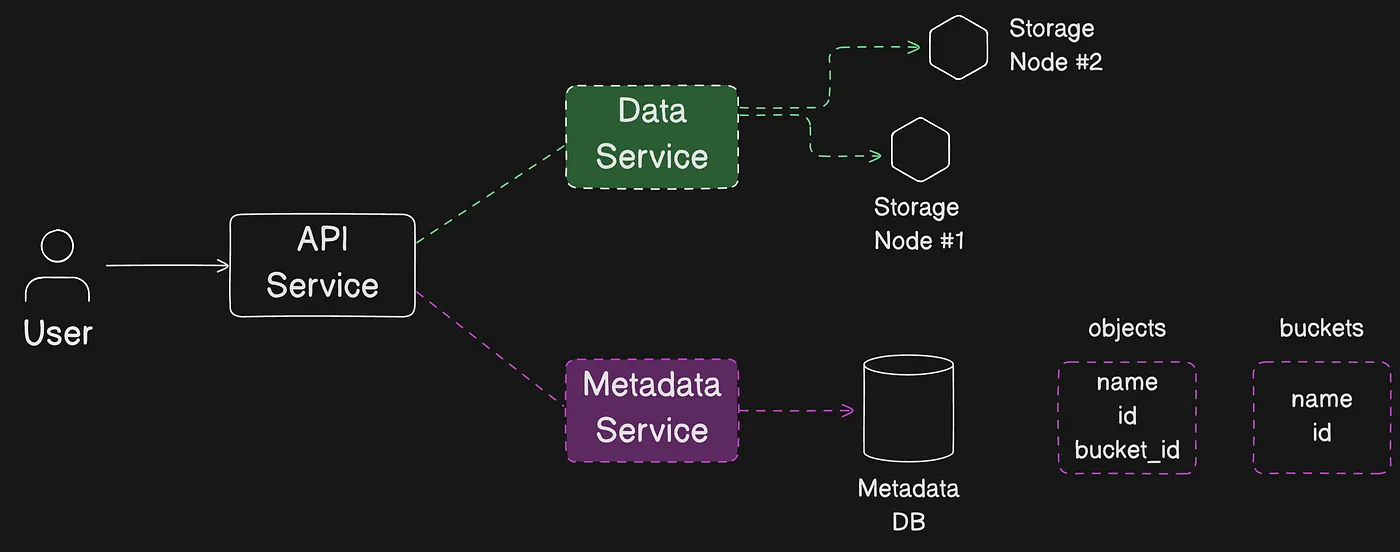 How S3 stores objects in buckets and controls access permissions
To fully understand S3 we need to focus on two main topics:
- Buckets
- Objects
After this, we focus on understanding different strategies in S3 for managing these buckets and objects:
- Data Encryption
- Data Protection
- Optimizing Performance
S3 Buckets
To store your data in Amazon S3, you work with resources known as buckets and objects. A bucket is a container for objects. An object is a file and any metadata that describes that file.
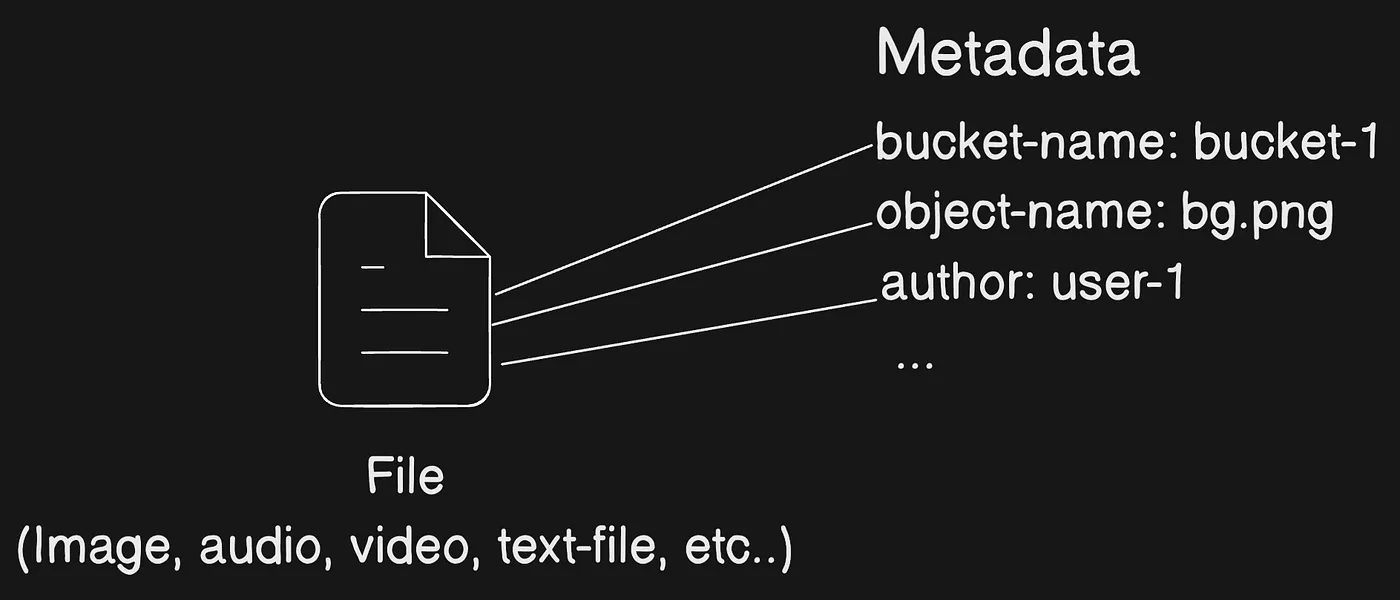 An object is a data file plus the metadata that describes it
To store an object in Amazon S3, you create a bucket and then upload the object to a bucket. When the object is in the bucket, you can open it, download it, and move it. When you no longer need an object or a bucket, you can clean up your resources.
AWS S3 supports three types of buckets that we will discuss in detail, these are: General-purpose buckets, Directory buckets, and Table buckets.
- General purpose buckets are the original S3 bucket type and are recommended for most use cases and access patterns. General purpose buckets also allow objects that are stored across all storage classes, except S3 Express One Zone.
- Directory buckets use the S3 Express One Zone storage class, which is recommended if your application is performance-sensitive and benefits from single-digit millisecond
PUTandGETlatencies. - Table buckets Amazon S3 Tables provide S3 storage that’s optimized for analytics workloads, with features designed to continuously improve query performance and reduce storage costs for tables. S3 Tables are purpose-built for storing tabular data, such as daily purchase transactions, streaming sensor data, or ad impressions. Tabular data represents data in columns and rows, like in a database table.
Amazon S3 supports global buckets, which means that each bucket name must be unique across all AWS accounts in all the AWS Regions within a partition. A partition is a grouping of Regions. AWS currently has three partitions: aws (Standard Regions), aws-cn (China Regions), and aws-us-gov (AWS GovCloud (US)).
Amazon S3 creates buckets in a Region that you specify. To reduce latency, minimize costs, or address regulatory requirements, choose any AWS Region that is geographically close to you. For example, if you reside in Europe, you might find it advantageous to create buckets in the Europe (Ireland) or Europe (Frankfurt) Regions.
General Purpose Buckets
A general-purpose bucket is a container for objects stored in Amazon S3. You can store any number of objects in a bucket and all accounts have a default bucket quota of 10,000 general-purpose buckets.
Every object is contained in a bucket. For example, if the object named photos/puppy.jpg is stored in the amzn-s3-demo-bucket bucket in the US West (Oregon) Region, then it is addressable by using the URL [https://amzn-s3-demo-bucket.s3.us-west-2.amazonaws.com/photos/puppy.jpg](https://amzn-s3-demo-bucket.s3.us-west-2.amazonaws.com/photos/puppy.jpg.).
S3 General Purpose buckets use what is called as Flat Storage Structure, where it organize all files at the same level, without directories or subdirectories, akin to placing all documents in a single folder. Relies on metadata tags and unique identifiers to categorize and retrieve files, compensating for the lack of nested directories.
+-------------------+
|     Flat Storage  |
+-------------------+
| File1             |
| File2             |
| File3             |
| ...               |
| FileN             |
+-------------------+
Directory Buckets
Directory buckets support bucket creation in the following bucket location types: Availability Zone or Local Zone.
For low latency use cases, you can create a directory bucket in a single Availability Zone to store data. Directory buckets in Availability Zones support the S3 Express One Zone storage class. S3 Express One Zone storage class is recommended if your application is performance-sensitive and benefits from single-digit millisecond PUT and GET latencies.
Directory buckets organize data hierarchically into directories as opposed to the flat storage structure of general-purpose buckets. There aren’t prefix limits for directory buckets, and individual directories can scale horizontally.
+-------------------+
| Root Directory    |
+-------------------+
       |
       +-- Folder1
       |     +-- Subfolder1
       |     |     +-- File1
       |     |     +-- File2
       |     +-- Subfolder2
       |           +-- File3
       |
       +-- Folder2
             +-- File4
             +-- File5
You can create up to 100 directory buckets in each of your AWS accounts, with no limit on the number of objects that you can store in a bucket. Your bucket quota is applied to each Region in your AWS account. If your application requires increasing this limit, contact AWS Support.
Flat structure of a general-purpose bucket versus the hierarchical structure of a directory bucket
Directories
Directory buckets organize data hierarchically into directories as opposed to the flat sorting structure of general purpose buckets.
With a hierarchical namespace, the delimiter in the object key is important. The only supported delimiter is a forward slash (/). Directories are determined by delimiter boundaries. For example, the object key dir1/dir2/file1.txt results in the directories dir1/ and dir2/ being automatically created, and the object file1.txt being added to the /dir2 directory in the path dir1/dir2/file1.txt
The directory bucket indexing model returns unsorted results for the ListObjectsV2 API operation. If you need to limit your results to a subsection of your bucket, you can specify a subdirectory path in the prefix parameter, for example, prefix=dir1/.
Key names
For directory buckets, subdirectories that are common to multiple object keys are created with the first object key. Additional object keys for the same subdirectory use the previously created subdirectory. This model gives you flexibility in choosing object keys that are best suited to the application, with equal support for sparse and dense directories.
Use cases for directory buckets
For low latency use cases, you can create a directory bucket in a single Availability Zone to store data. Directory buckets in Availability Zones support the S3 Express One Zone storage class. S3 Express One Zone storage class is recommended if your application is performance sensitive and benefits from single-digit millisecond PUT and GET latencies.
High-performance workloads
Amazon S3 Express One Zone is a high-performance, single-zone storage class designed for latency-sensitive applications. It offers the highest possible access speed by co-locating object storage with compute resources in a single Availability Zone.
Key benefits include:
- Low Latency: Provides single-digit millisecond data access, up to 10x faster than S3 Standard.
- Cost Efficiency: Request costs are 50% lower than S3 Standard.
- Performance Elasticity: Similar to other S3 storage classes.
- Redundancy: Handles concurrent device failures by shifting requests to new devices within the same Availability Zone.
Ideal for applications requiring minimal latency, such as:
- Human-Interactive Workflows: Video editing and other creative tasks.
- Analytics and Machine Learning: Workloads with frequent or random data accesses.
S3 Express One Zone can be integrated with AWS services like Amazon EMR, Amazon SageMaker, and Amazon Athena to support analytics and AI/ML workloads.
For optimal performance, specify an AWS Region and Availability Zone local to your compute instances (e.g., Amazon EC2, Amazon EKS, or Amazon ECS). You can access S3 Express One Zone directory buckets from a VPC using a gateway VPC endpoint, avoiding the need for an internet gateway or NAT device.
Appending data to objects in directory buckets
You can append data to existing objects in S3 Express One Zone directory buckets. This is useful for continuously written data or when you need to read while writing, such as adding log entries or video segments.
Key points:
- No Minimum Size: Append any size data, up to 5GB per request.
- Maximum Parts: Each object can have up to 10,000 parts.
- Multipart Upload: Parts from multipart uploads count towards the 10,000 parts limit.
If you reach the limit, you’ll get a TooManyParts error. Use the CopyObject API to reset the count.
For parallel uploads without reading parts during upload, use Amazon S3 multipart upload.
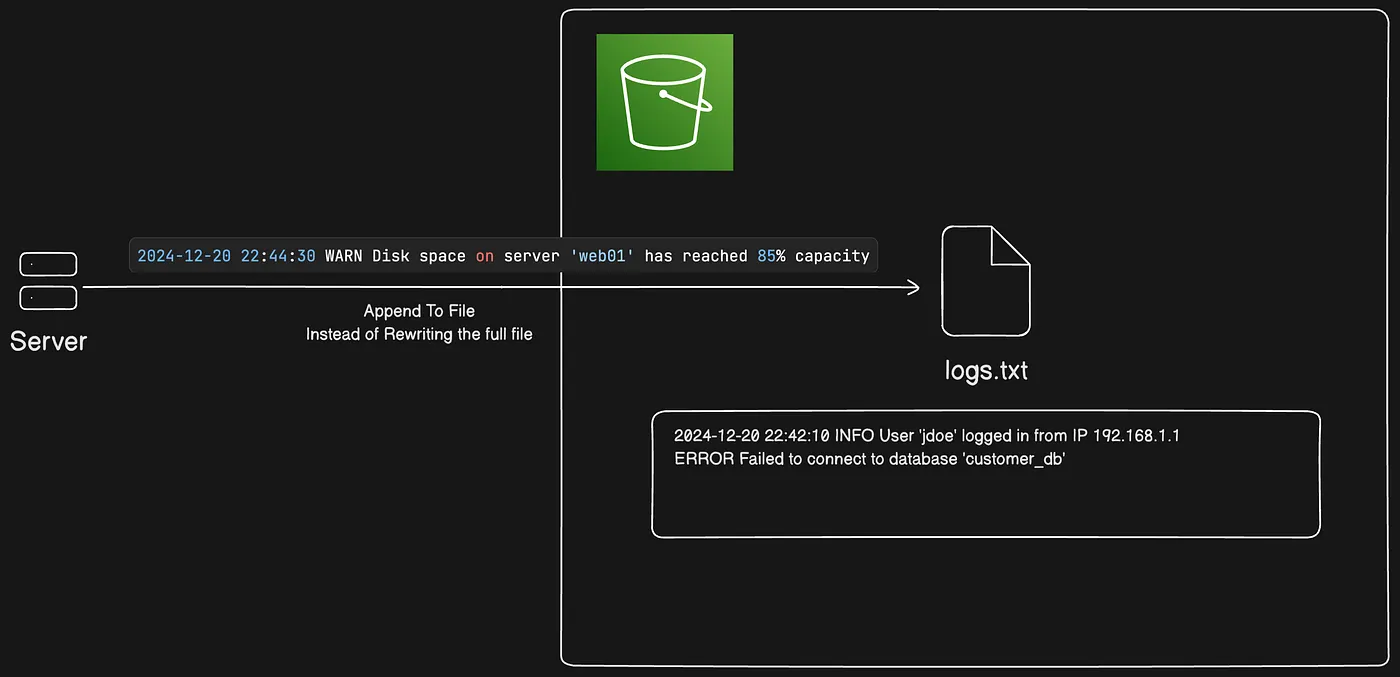 Appending data sequentially to an object in an S3 Express One Zone directory bucket
Appending is supported only for objects in S3 Express One Zone directory buckets.
Session Based Authentication
With regional buckets, every single request requires authentication, offering high granularity and expressive policies in IAM and bucket policies. However, this authentication process incurs some latency, which accumulates over numerous requests.
To address this, AWS introduced a new Create Session API for directory buckets. This API allows users to authenticate a session and distribute the associated authentication latency over subsequent requests by obtaining a token granting access to the entire bucket. Sessions can operate in three modes: read-only, write-only, or read-write, providing essential options for users.
While AWS abstracts most security complexities in the SDK, writing bucket policies for directory buckets varies due to different data path authentication. Simplifying policies for directory buckets involves actions like allowing session creation based on specific principles.
Anti-patterns
When deciding against utilizing AWS Directory buckets, it’s essential to consider specific limitations that might hinder their support for your particular use case. These constraints include several aspects:
- Objects within Directory buckets cannot have tags applied to them. Consequently, attempts to copy an object with a tag to a Directory bucket will result in a 501 Not Implemented response.
- Directory buckets become inactive after remaining idle without request activity for 3 months. During this inactive state, the buckets are inaccessible for both read and write operations. Reactivation occurs upon access request, which might take a few minutes, leading to 503 slowdown responses for read and write requests.
- Only Server Side Encryption with S3 Managed keys (SSE-S3) is supported for Directory buckets. Other encryption methods like SSE-KMS and SSE-C are not compatible.
- Several essential S3 features such as Multi-Factor Authentication, S3 Versioning, Replication, Inventory reports, and S3 event notifications are not supported in conjunction with Directory buckets.
- The authorization model differs for Directory buckets, lacking object-level authorization; instead, authorization must occur at the bucket level.
S3 Table Buckets
Amazon S3 Tables provide S3 storage that’s optimized for analytics workloads, with features designed to continuously improve query performance and reduce storage costs for tables. S3 Tables are purpose-built for storing tabular data, such as daily purchase transactions, streaming sensor data, or ad impressions. Tabular data represents data in columns and rows, like in a database table.
The data in S3 Tables is stored in a new bucket type: a table bucket, which stores tables as subresources. Table buckets support storing tables in the Apache Iceberg format. Using standard SQL statements, you can query your tables with query engines that support Iceberg, such as Amazon Athena, Amazon Redshift, and Apache Spark.
Table buckets are used to store tabular data and metadata as objects for use in analytics workloads. Table buckets are comparable to data warehouses in analytics
Features of S3 Tables
S3 Tables comes with a pre-built features:
- Purpose-built storage for tables
- Built-in support for Apache Iceberg
- Automated table optimization
- Access management and security
- Integration with AWS analytics services
S3 Tables Namespaces
When you create tables within your table bucket, you organize them into logical groupings called namespaces. Unlike S3 tables and Table buckets, namespaces are not resources, they are constructs that help you organize and manage your tables in a scalable manner. For example, all the tables belonging to the HR department in a company could be grouped under a common namespace value of hr.
You can use table bucket resource policies to limit access to specific namespaces.
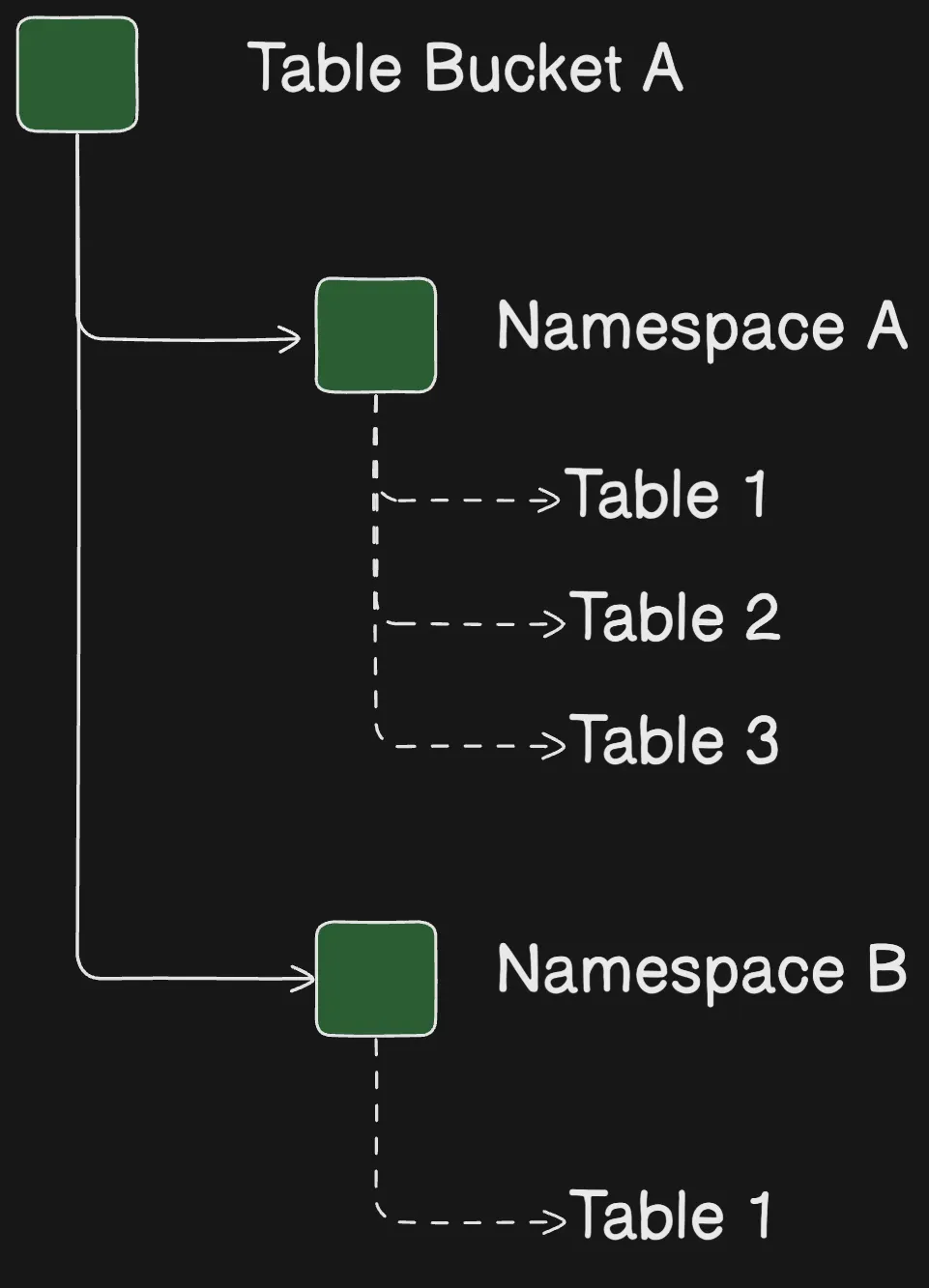 Table bucket structure grouping tables by namespace
Comprehensive S3 Buckets Comparison
Given the complexity and variety of S3 buckets, it is essential to have a thorough comparison to understand their specific use cases and optimal usage scenarios. This summary provides an in-depth analysis of the key differences between the various S3 bucket types offered by AWS, enabling you to make informed decisions on when and how to utilize each bucket effectively.
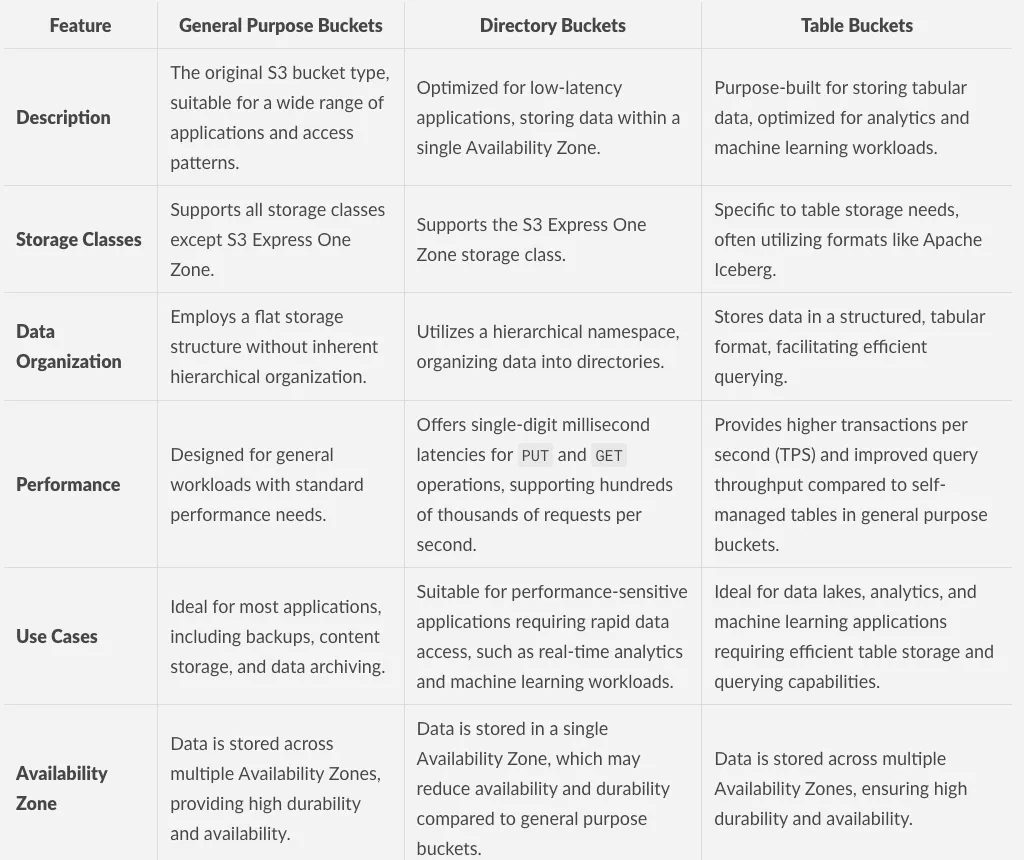 Comparison table of S3 bucket type characteristics, part one
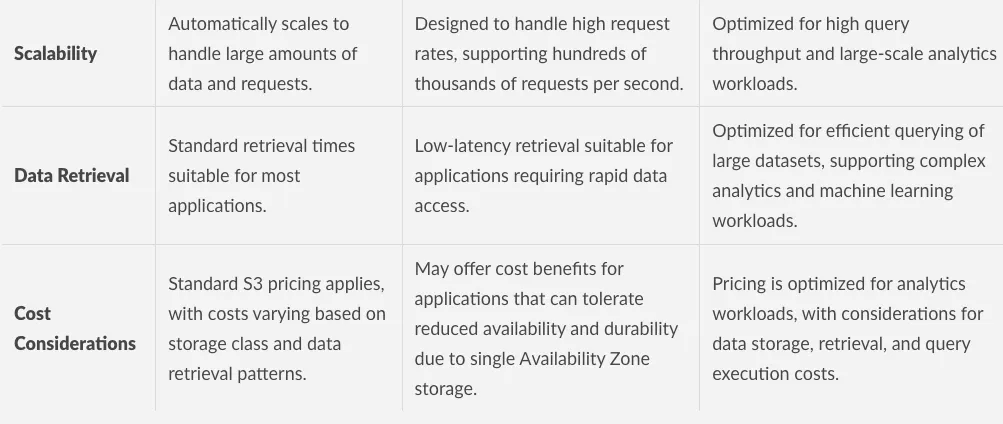 Comparison table of S3 bucket type characteristics, part two
Objects in S3
To store your data in Amazon S3, you work with resources known as buckets and objects. A bucket is a container for objects. An object is a file and any metadata that describes that file.
To store an object in Amazon S3, you create a bucket and then upload the object to a bucket. When the object is in the bucket, you can open it, download it, and copy it. When you no longer need an object or a bucket, you can clean up these resources.
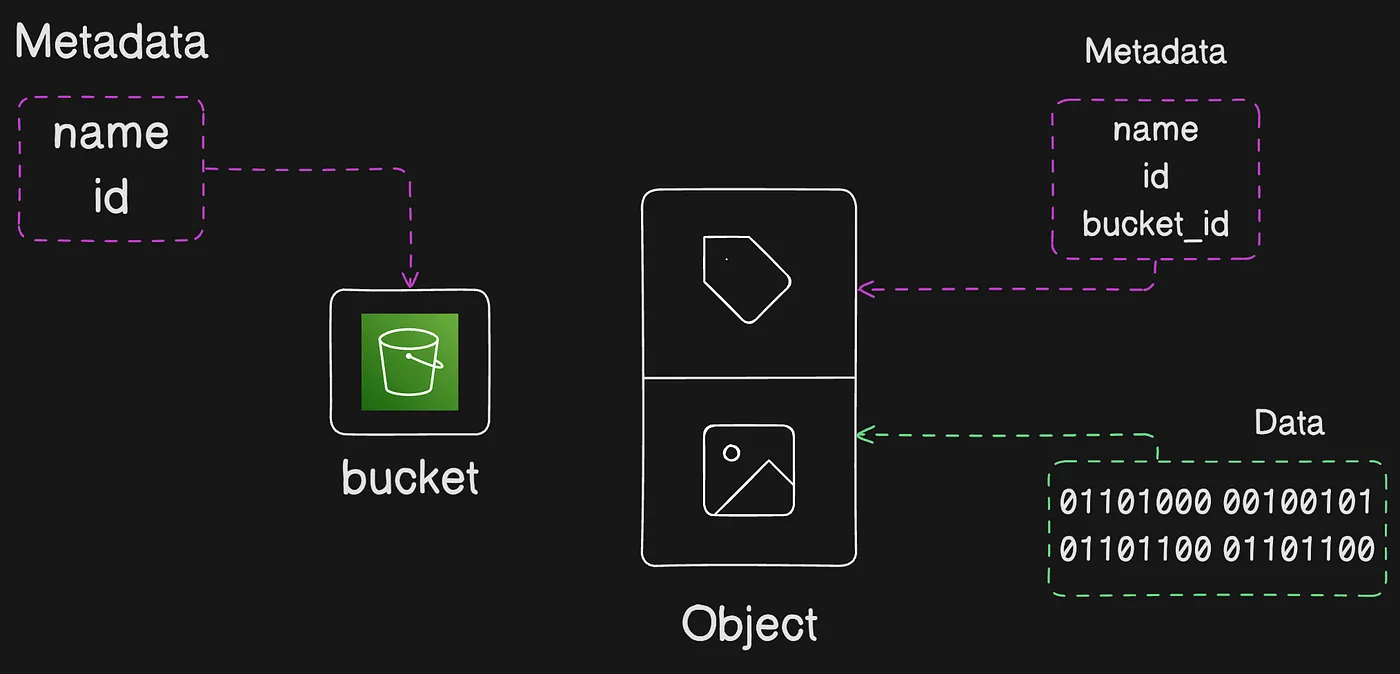 How objects are stored inside an S3 bucket
Amazon S3 objects overview
Amazon S3 is an object store that uses unique key-values to store as many objects as you want. You store these objects in one or more buckets, and each object can be up to 5 TB in size. An object consists of the following:
Key
The name that you assign to an object. You use the object key to retrieve the object.
Version ID
Within a bucket, a key and version ID uniquely identify an object. The version ID is a string that Amazon S3 generates when you add an object to a bucket.
Value
The content that you are storing.
An object value can be any sequence of bytes. Objects can range in size from zero to 5 TB.
Metadata
A set of name-value pairs with which you can store information regarding the object. You can assign metadata, referred to as user-defined metadata, to your objects in Amazon S3. Amazon S3 also assigns system-metadata to these objects, which it uses for managing objects.
Subresources
Amazon S3 uses the subresource mechanism to store object-specific additional information. Because subresources are subordinates to objects, they are always associated with some other entity such as an object or a bucket.
Access control information
You can control access to the objects you store in Amazon S3. Amazon S3 supports both the resource-based access control, such as an access control list (ACL) and bucket policies, and user-based access control.
Your Amazon S3 resources (for example, buckets and objects) are private by default. You must explicitly grant permission for others to access these resources.
Tags
You can use tags to categorize your stored objects, for access control, or cost allocation.
let us explore each of these properties in detail and then talk about specific actions related to objects in S3
Object metadata
There are two kinds of object metadata in Amazon S3: system-defined metadata and user-defined metadata.
System-defined metadata includes metadata such as the object’s creation date, size, and storage class. User-defined metadata is metadata that you can choose to set at the time that you upload an object. This user-defined metadata is a set of name-value pairs.
When you create an object, you specify the object key (or key name), which uniquely identifies the object in an Amazon S3 bucket.
After you upload the object, you can’t modify this user-defined metadata. The only way to modify this metadata is to make a copy of the object and set the metadata.
By default, S3 Metadata provides system-defined object metadata, such as an object’s creation time and storage class, and custom metadata, such as tags and user-defined metadata that was included during object upload. S3 Metadata also provides event metadata, such as when an object is updated or deleted, and the AWS account that made the request.
Query your metadata and accelerate data discovery with S3 Metadata (Feature In Preview Mode)
Amazon S3 Metadata accelerates data discovery by automatically capturing metadata for the objects in your general purpose buckets and storing it in read-only, fully managed Apache Iceberg tables that you can query. These read-only tables are called metadata tables. As objects are added to, updated, and removed from your general purpose buckets, S3 Metadata automatically refreshes the corresponding metadata tables to reflect the latest changes.
With S3 Metadata, you can easily find, store, and query metadata for your S3 objects, so that you can quickly prepare data for use in business analytics, content retrieval, artificial intelligence and machine learning (AI/ML) model training, and more.
Metadata tables are stored in S3 table buckets, which provide storage that’s optimized for tabular data. To easily query your metadata, you can integrate your table bucket with AWS Glue Data Catalog. After your table bucket is integrated with AWS Glue Data Catalog, you can directly query your metadata tables with query engines such as Amazon Athena, Amazon EMR, Amazon Redshift, Apache Spark, and Apache Trino. You can also query your metadata tables with any other application that supports the Apache Iceberg format. To create dashboards from your metadata tables, use Amazon QuickSight.
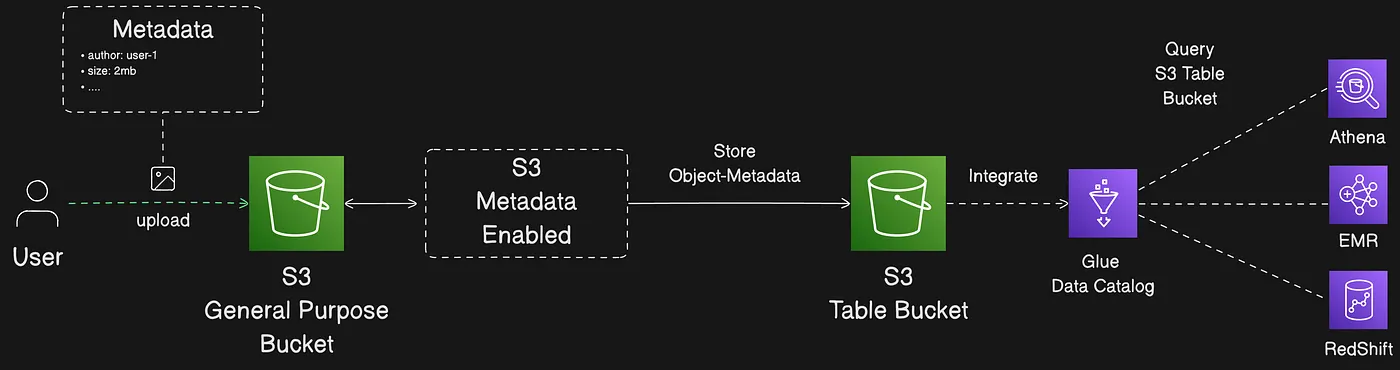 S3 Metadata captures metadata into Iceberg tables for querying
Uploading objects
When you upload a file to Amazon S3, it is stored as an S3 object. Objects consist of the file data and metadata that describes the object. You can have an unlimited number of objects in a bucket. Before you can upload files to an Amazon S3 bucket, you need write permissions for the bucket.
If you upload an object with a key name that already exists in a versioning-enabled bucket, Amazon S3 creates another version of the object instead of replacing the existing object.
When you upload an object, the object is automatically encrypted using server-side encryption with Amazon S3 managed keys (SSE-S3) by default. When you download it, the object is decrypted.
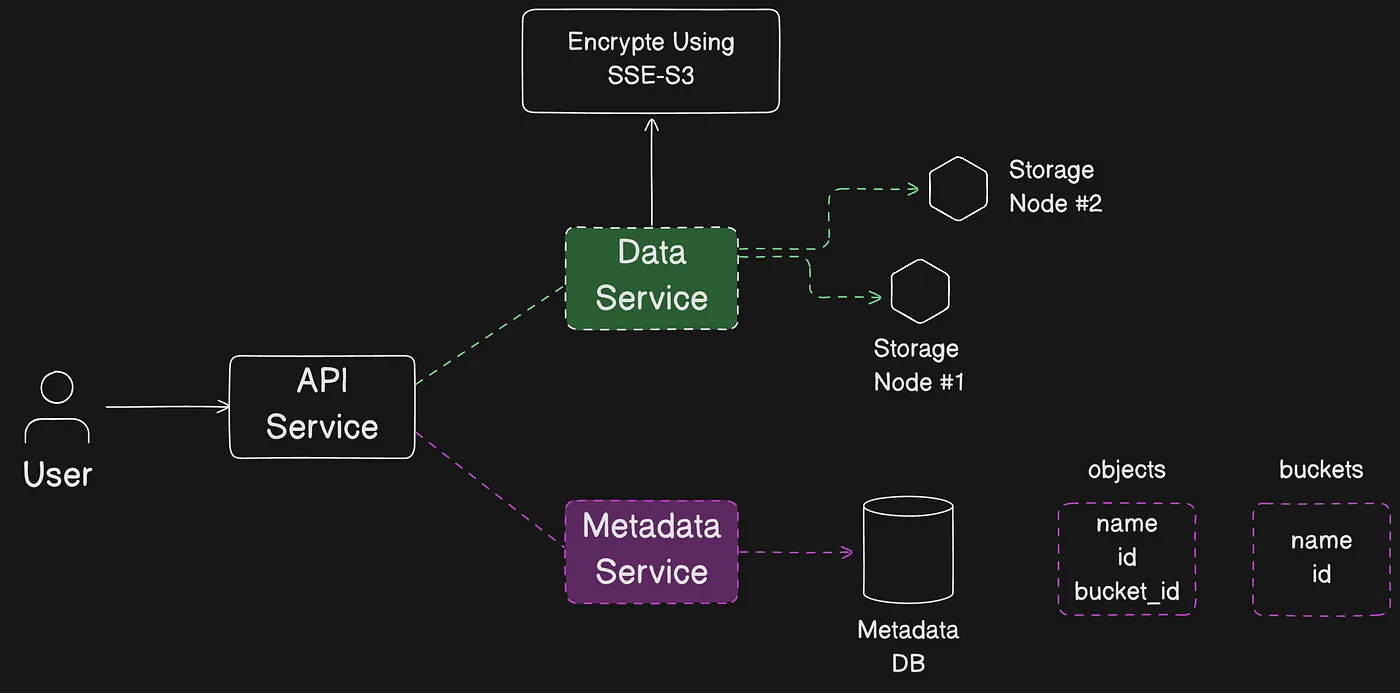 Object upload flow to S3 with default SSE-S3 encryption
When you’re uploading an object, if you want to use a different type of default encryption, you can also specify server-side encryption with AWS Key Management Service (AWS KMS) keys (SSE-KMS) in your S3 PUT requests or set the default encryption configuration in the destination bucket to use SSE-KMS to encrypt your data. For more information about SSE-KMS
Prevent uploading objects with identical key names
You can check for the existence of an object in your bucket before creating it using a conditional write on upload operations. This can prevent overwrites of existing data. Conditional writes will validate there is no existing object with the same key name already in your bucket while uploading.
import { S3Client, PutObjectCommand } from "@aws-sdk/client-s3";
// Initialize the S3 client
const s3Client = new S3Client({ region: 'us-east-2' });
// Define your bucket, object key, and the content to upload
const bucketName = 'your-bucket-name';
const objectKey = 'your-object-key';
const fileContent = 'My Amazing File Content';
async function uploadFileIfNotExists() {
    try {
        const params = {
            Bucket: bucketName,
            Key: objectKey,
            Body: fileContent,
            // If-None-Match set to "*" prevents overwriting an existing object
            IfNoneMatch: "*",
        };

        const command = new PutObjectCommand(params);
        const data = await s3Client.send(command);
        console.log('File successfully uploaded!');

    } catch (error) {
        if (error.name === 'PreconditionFailed') {
            console.log('File already exists. Aborting upload to prevent overwrite.');
        } else {
            console.error('Error uploading file:', error);
        }
    }
}
Uploading objects using multipart upload
Multipart upload allows you to upload a single object to Amazon S3 as a set of parts. Each part is a contiguous portion of the object’s data. You can upload these object parts independently, and in any order. For uploads, your updated AWS client automatically calculates a checksum of the object and sends it to Amazon S3 along with the size of the object as a part of the request. If transmission of any part fails, you can retransmit that part without affecting other parts. After all parts of your object are uploaded, Amazon S3 assembles them to create the object. It’s a best practice to use multipart upload for objects that are 100 MB or larger instead of uploading them in a single operation.
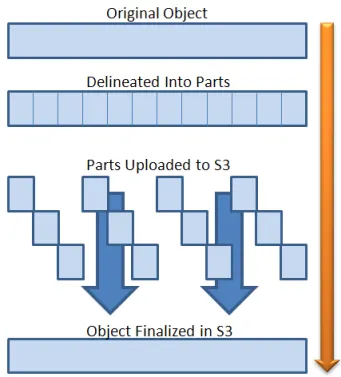 A large object split into multiple parts for independent upload
Using multipart upload provides the following advantages:
- Improved throughput — You can upload parts in parallel to improve throughput.
- Quick recovery from any network issues — Smaller part size minimizes the impact of restarting a failed upload due to a network error.
- Pause and resume object uploads — You can upload object parts over time. After you initiate a multipart upload, there is no expiry; you must explicitly complete or stop the multipart upload.
- Begin an upload before you know the final object size — You can upload an object as you create it.
It is recommended to use Multi-part upload in the following scenario:
- If you upload large objects over a stable high-bandwidth network, use multipart upload to maximize the use of your available bandwidth by uploading object parts in parallel for multi-threaded performance.
- If you upload over a spotty network, use multipart upload to increase resiliency against network errors by avoiding upload restarts. When using multipart upload, you only need to retry uploading the parts that are interrupted during the upload. You don’t need to restart uploading your object from the beginning.
Multipart upload process
Multipart upload is a three-step process: You initiate the upload, upload the object parts, and — after you’ve uploaded all the parts — complete the multipart upload. Upon receiving the complete multipart upload request, Amazon S3 constructs the object from the uploaded parts, and you can access the object just as you would any other object in your bucket.
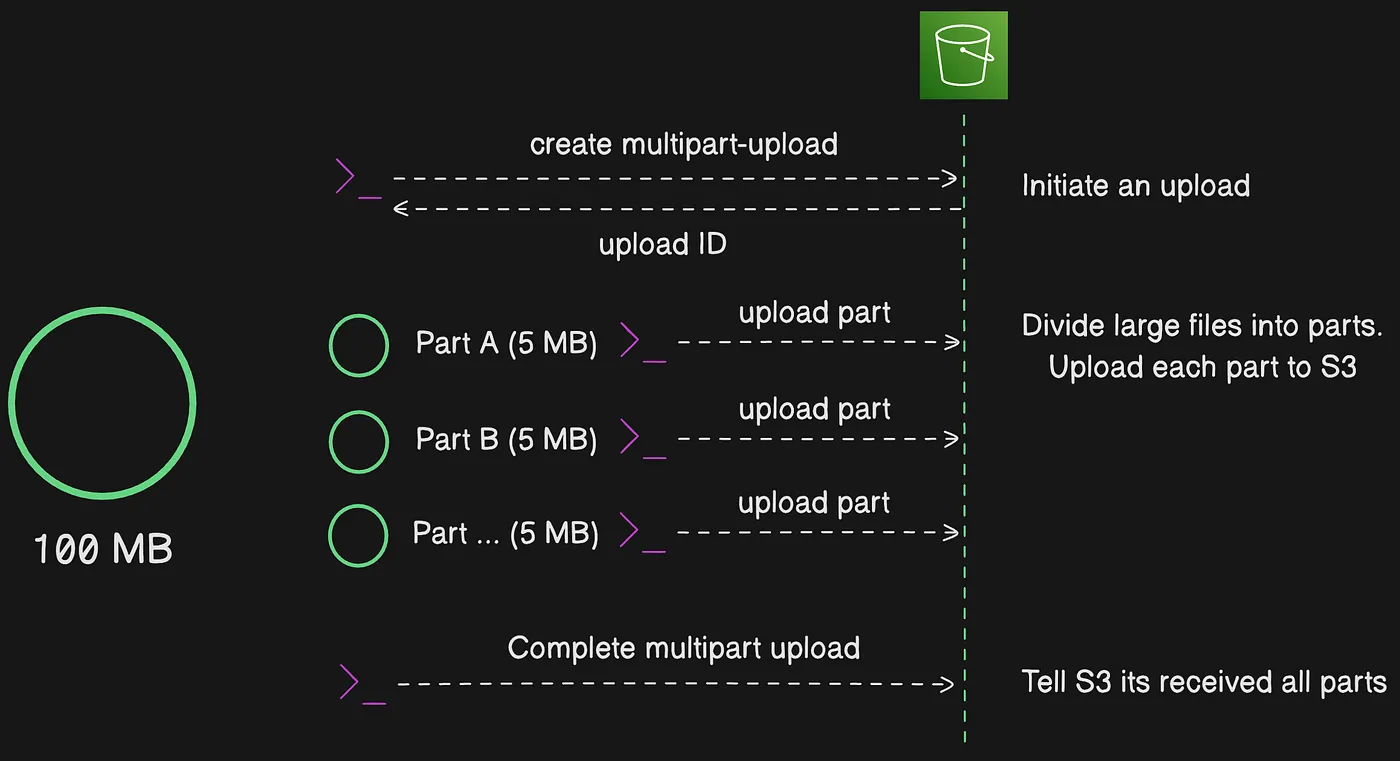 The three-step multipart upload process shown through a concrete example
You can list all of your in-progress multipart uploads or get a list of the parts that you have uploaded for a specific multipart upload. Each of these operations is explained in this section.
Multipart upload initiation
When you send a request to initiate a multipart upload, make sure to specify a checksum type. Amazon S3 will then return a response with an upload ID, which is a unique identifier for your multipart upload. This upload ID is required when you upload parts, list parts, complete an upload, or stop an upload.
If you want to provide metadata describing the object being uploaded, you must provide it in the request to initiate the multipart upload.
Parts upload
When uploading a part, you must specify a part number in addition to the upload ID. You can choose any part number between 1 and 10,000. A part number uniquely identifies a part and its position in the object you are uploading. The part number that you choose doesn’t need to be in a consecutive sequence (for example, it can be 1, 5, and 14). Be aware that if you upload a new part using the same part number as a previously uploaded part, the previously uploaded part gets overwritten.
When you upload a part, Amazon S3 returns the checksum algorithm type with the checksum value for each part as a header in the response. For each part upload, you must record the part number and the ETag value. You must include these values in the subsequent request to complete the multipart upload. Each part will have its own ETag at the time of upload. However, once the multipart upload is complete and all parts are consolidated, all parts belong to one ETag as a checksum of checksums.
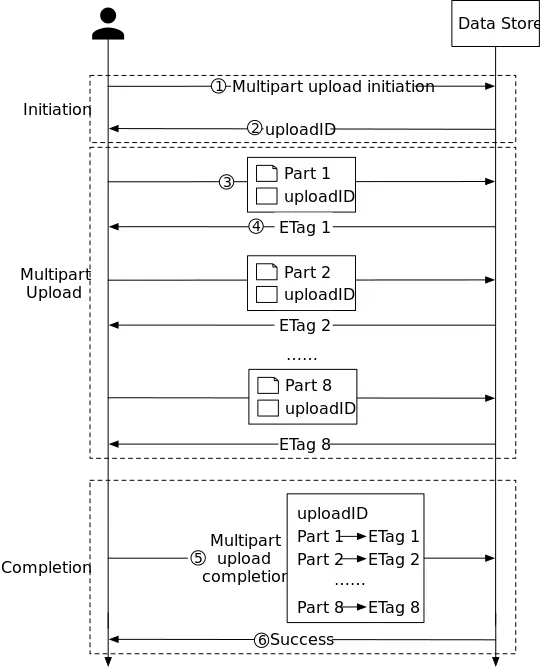 Each part returns its own ETag, combined into a checksum of checksums
Multipart upload completion
When you complete a multipart upload, Amazon S3 creates an object by concatenating the parts in ascending order based on the part number. If any object metadata was provided in the initiate multipart upload request, Amazon S3 associates that metadata with the object. After a successful complete request, the parts no longer exist.
Your complete multipart upload request must include the upload ID and a list of part numbers and their corresponding ETag values. The Amazon S3 response includes an ETag that uniquely identifies the combined object data. This ETag is not necessarily an MD5 hash of the object data.
When you provide a full object checksum during a multipart upload, the AWS SDK passes the checksum to Amazon S3, and S3 validates the object integrity server-side, comparing it to the received value. Then, S3 stores the object if the values match. If the two values don’t match, Amazon S3 fails the request with a BadDigest error. The checksum of your object is also stored in object metadata that you’ll later use to validate an object’s data integrity.
Abort Mutlipart upload
After you initiate a multipart upload, you begin uploading parts. Amazon S3 stores these parts, and only creates the object after you upload all parts and send a request to complete the multipart upload. Upon receiving the complete multipart upload request, Amazon S3 assembles the parts and creates an object. If you don’t send the complete multipart upload request successfully, S3 does not assemble the parts and does not create any object. If you wish to not complete a multipart upload after uploading parts you should abort the multipart upload.
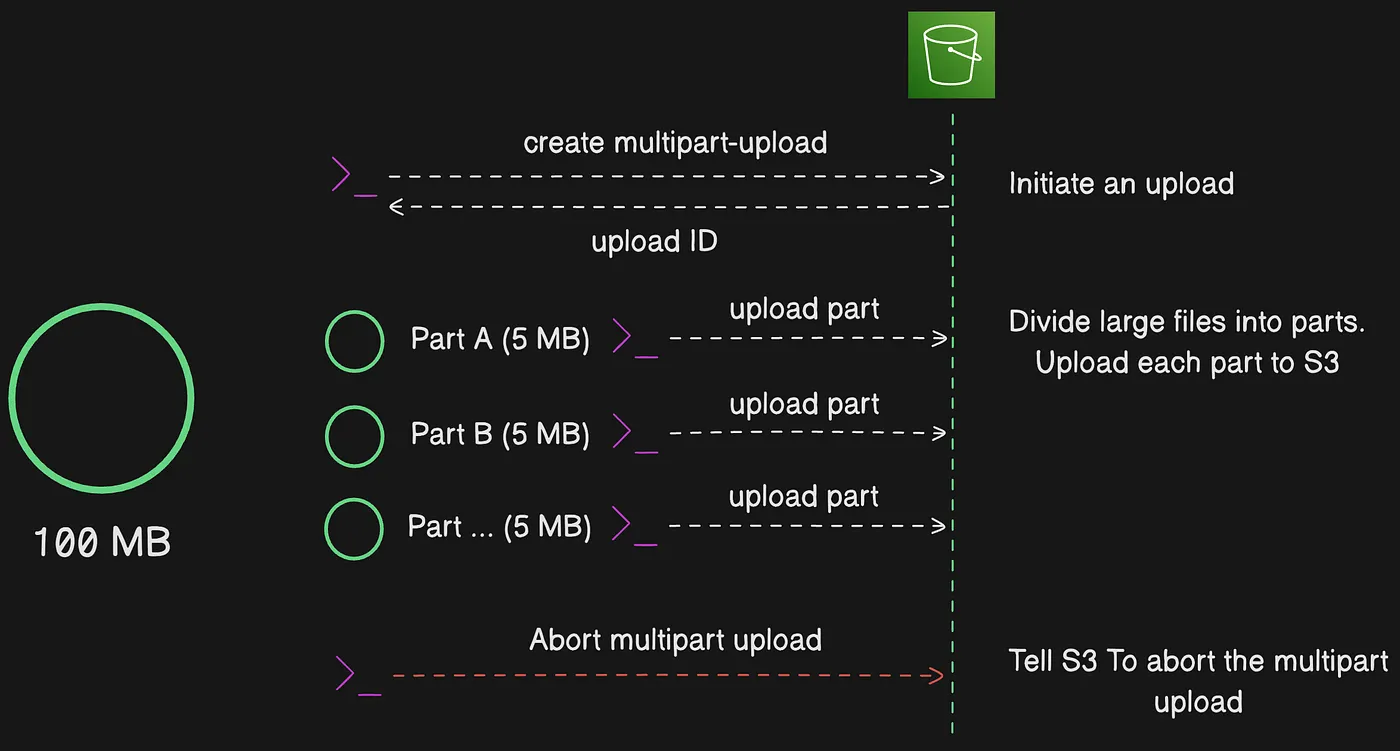 Aborting a multipart upload to delete the partially uploaded parts
You are billed for all storage associated with uploaded parts. It’s recommended to always either complete the multipart upload or stop the multipart upload to remove any uploaded parts.
Concurrent multipart upload operations
In a distributed development environment, it is possible for your application to initiate several updates on the same object at the same time. Your application might initiate several multipart uploads using the same object key. For each of these uploads, your application can then upload parts and send a complete upload request to Amazon S3 to create the object. When the buckets have S3 Versioning enabled, completing a multipart upload always creates a new version. When you initiate multiple multipart uploads that use the same object key in a versioning-enabled bucket, the current version of the object is determined by which upload started most recently (createdDate).
For example, you start a CreateMultipartUpload request for an object at 10:00 AM. Then, you submit a second CreateMultipartUpload request for the same object at 11:00 AM. Because the second request was submitted the most recently, the object uploaded by the 11:00 AM request becomes the current version, even if the first upload is completed after the second one.
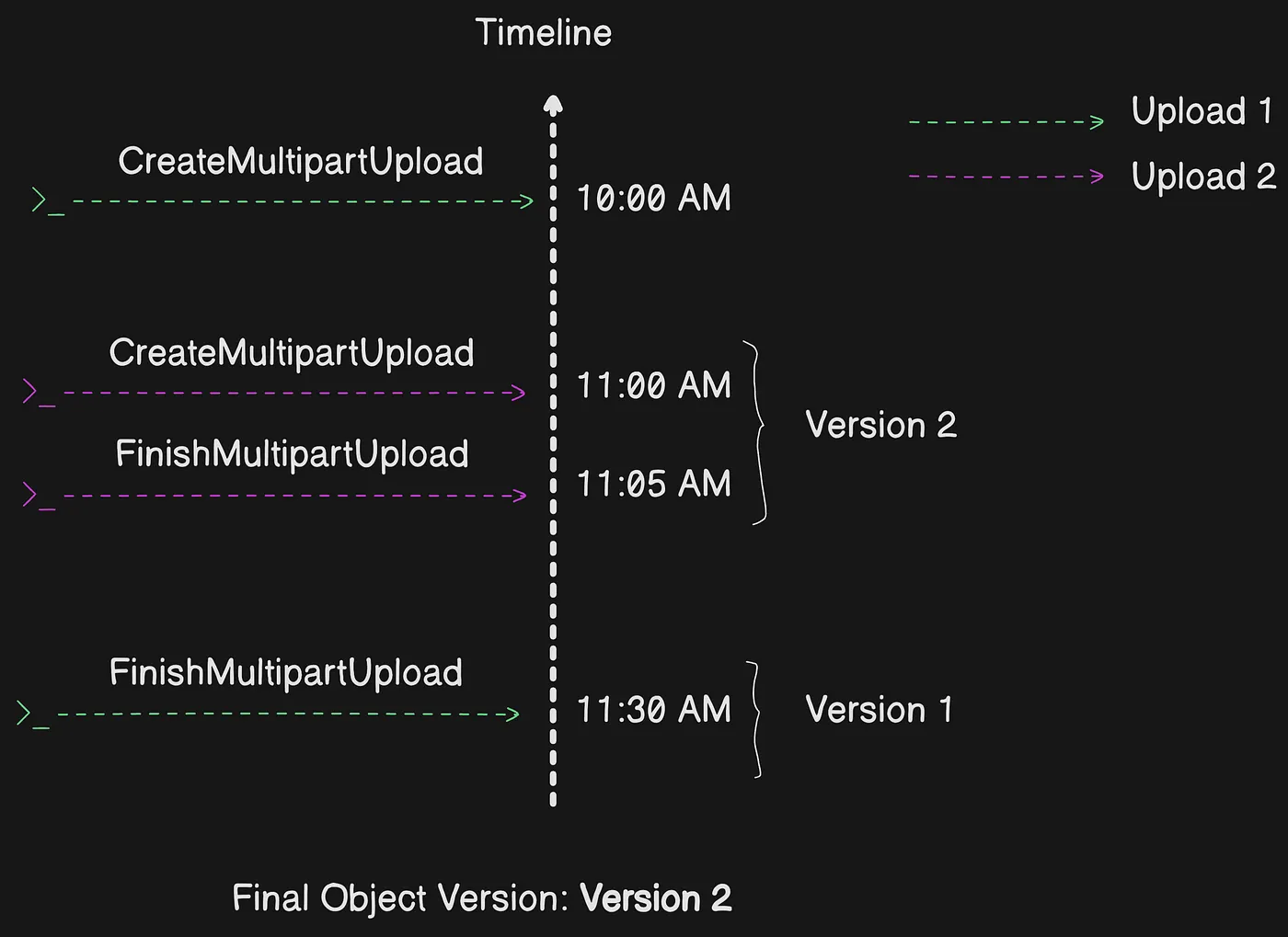 Two concurrent multipart uploads, the later-started one becomes the current version
For buckets that don’t have versioning enabled, it’s possible that any other request received between the time when the multipart upload is initiated and when it completes, the other request might take precedence.
Another example of when a concurrent multipart upload request can take precedence is if another operation deletes a key after you initiate a multipart upload with that key. Before you complete the operation, the complete multipart upload response might indicate a successful object creation without you ever seeing the object.
As a best practice, we recommend that you configure a lifecycle rule by using the
AbortIncompleteMultipartUploadaction to minimize your storage costs.
Add preconditions to S3 operations with conditional requests
You can use conditional requests to add preconditions to your S3 operations. To use conditional requests, you add an additional header to your Amazon S3 API operation. This header specifies a condition that, if not met, will result in the S3 operation failing.
Conditional reads are supported for GET, HEAD, and COPY requests. You can add preconditions to return or copy an object based on its Entity tag (ETag) or last modified date. This can limit an S3 operation to objects updated since a specified date. You can also limit an S3 operation to a specific ETag. This could ensure you only return or copy a specific object version. (Review documentation for fa ull list of supported API)
Conditional writes can ensure there is no existing object with the same key name in your bucket during PUT operations. This prevents the overwriting of existing objects with identical key names. Similarly, you can use conditional writes to check if an object’s ETag is unchanged before updating the object. This prevents unintentional overwrites on an object without knowing the state of its content.
Conditional write scenarios
To understand conditional writes, consider the following scenarios where two clients are running operations on the same bucket.
Conditional writes during multipart uploads
Conditional writes do not consider any in-progress multipart upload requests since those are not yet fully written objects. Consider the following example where Client 1 is uploading an object using multipart upload. During the multipart upload, Client 2 is able to successfully write the same object with the conditional write operation. Subsequently, when Client 1 tries to complete the multipart upload using a conditional write the upload fails.
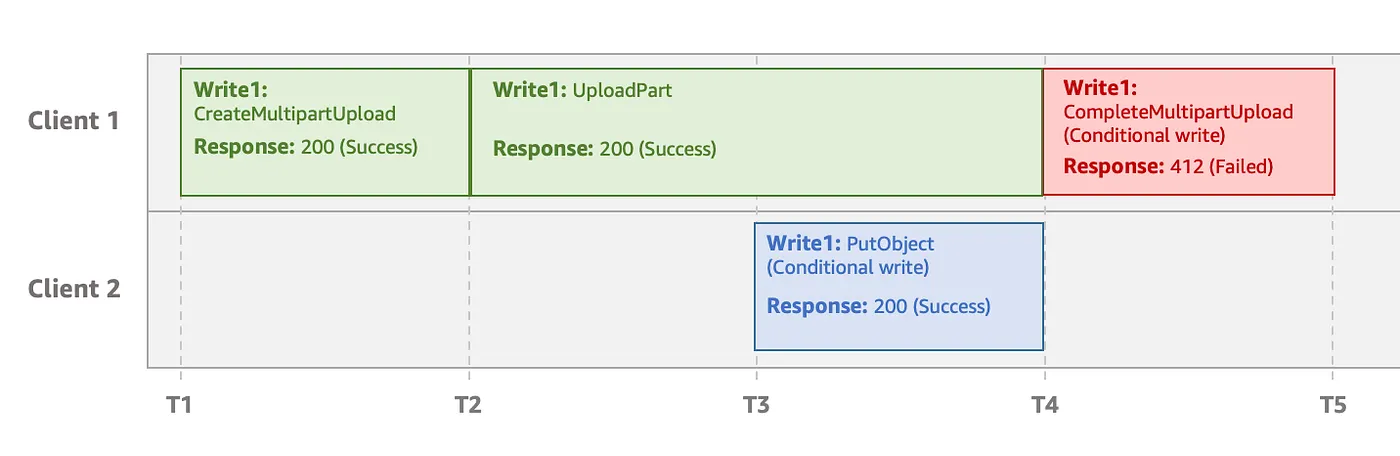 Conditional write ignores the in-progress multipart upload, causing Client 1 to fail at completion
Concurrent deletes during multipart uploads
If a delete request succeeds before a conditional write request can be completed, Amazon S3 returns an 409 Conflict or 404 Not Found response for the write operation. This is because the delete request that was initiated earlier takes precedence over the conditional write operation. In such cases, you must initiate a new multipart upload.
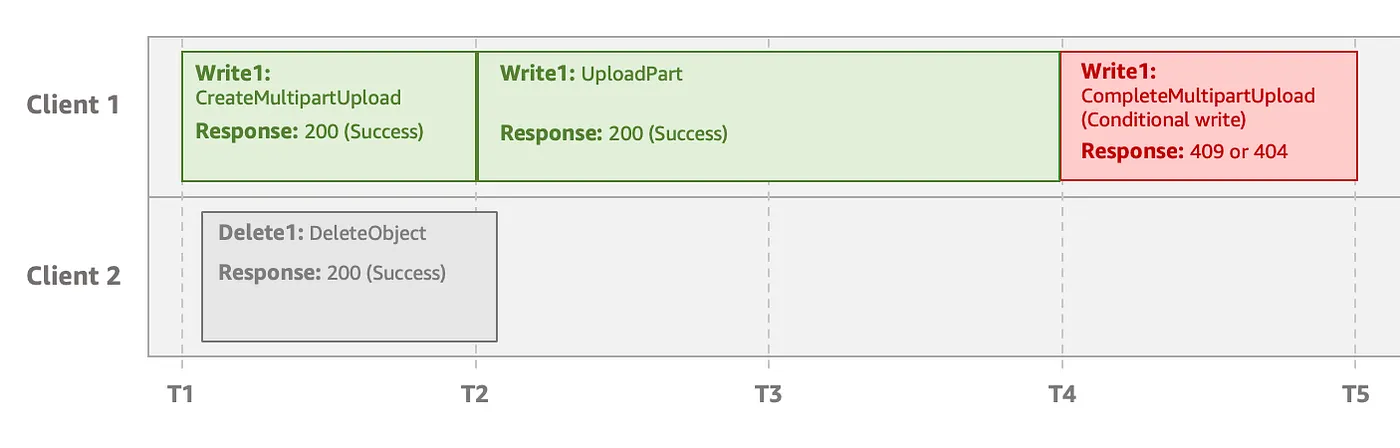 A concurrent delete takes precedence, so the conditional write gets a 409 or 404 error
Checking object integrity in Amazon S3
Amazon S3 uses checksum values to verify the integrity of data that you upload or download. In addition, you can request that another checksum value be calculated for any object that you store in Amazon S3. You can choose a checksum algorithm to use when uploading, copying, or batch-copying your data.
When you upload your data, Amazon S3 uses the algorithm that you’ve chosen to compute a checksum on the server side and validates it with the provided value before storing the object and storing the checksum as part of the object metadata. This validation works consistently across encryption modes, object sizes, and storage classes for both single part and multipart uploads. When you copy or batch copy your data, however, Amazon S3 calculates the checksum on the source object and moves it to the destination object.
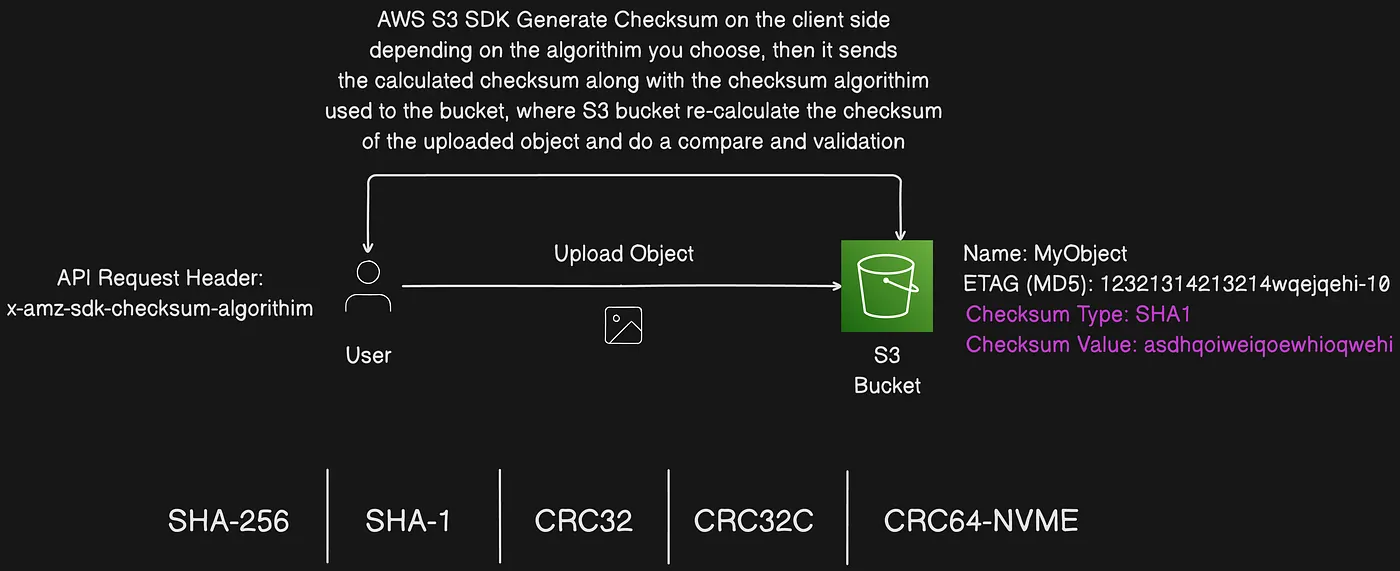 S3 computes the checksum server-side and stores it with the object metadata
With Amazon S3, you can choose a checksum algorithm to validate your data during uploads. The specified checksum algorithm is then stored with your object and can be used to validate data integrity during downloads.
Additionally, you can provide a checksum with each request using the Content-MD5 header.
If the source object doesn’t have a specified checksum algorithm or checksum value, Amazon S3 uses the CRC64-NVME algorithm to calculate the checksum value for the destination object.
Now that we have understand how S3 checksum works, it is time to take a look on few ways and patterns that can be used to validate object integrity.
Full object and composite checksum types
In Amazon S3, there are two types of supported checksums:
- Full object checksums: A full object checksum is calculated based on all of the content of a multipart upload, covering all data from the first byte of the first part to the last byte of the last part.
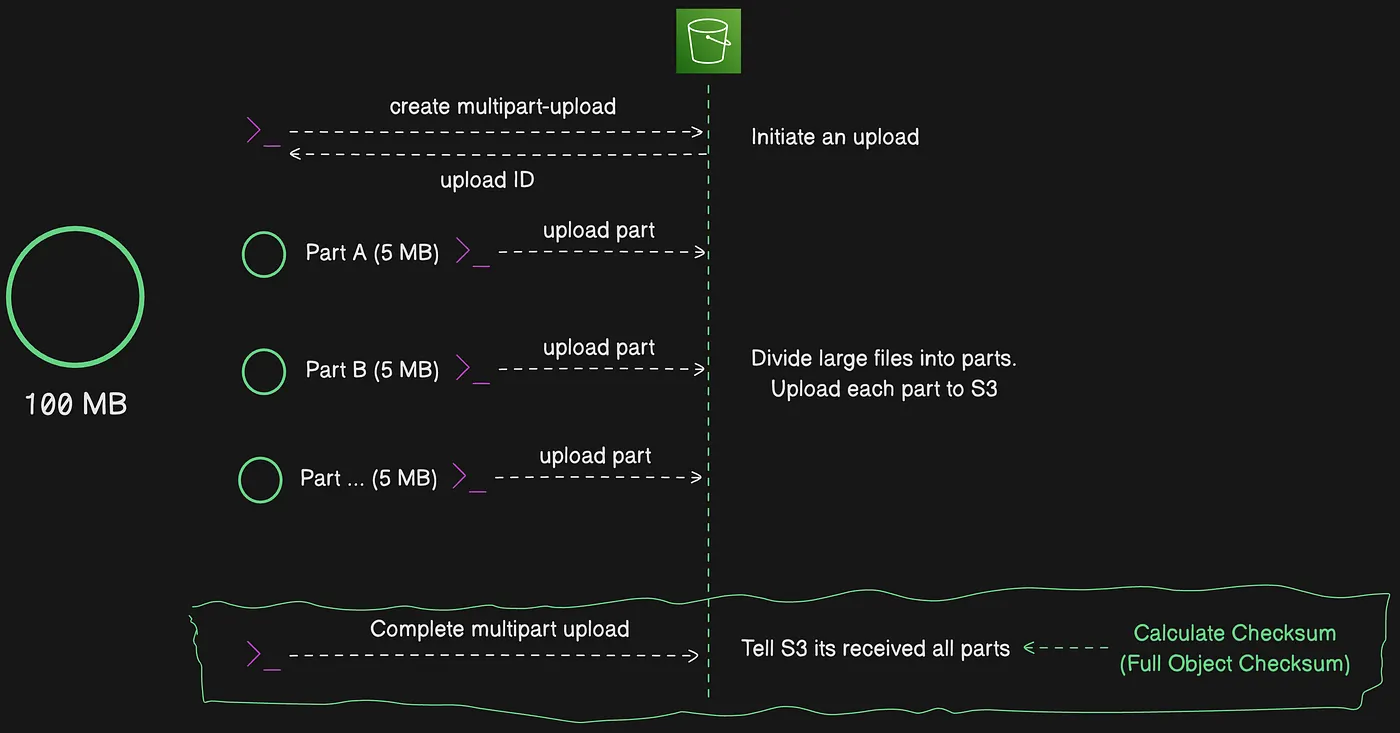 Full object checksum computed over the entire content from first to last part
This means that you can provide the checksum algorithm for the [MultipartUpload](https://docs.aws.amazon.com/AmazonS3/latest/API/API_MultipartUpload.html) API, simplifying your integrity validation tooling because you no longer need to track part boundaries for uploaded objects. You can provide the checksum of the whole object in the [CompleteMultipartUpload](https://docs.aws.amazon.com/AmazonS3/latest/API/API_CompleteMultipartUpload.html) request, along with the object size.
- Composite checksums: A composite checksum is calculated based on the individual checksums of each part in a multipart upload. Instead of computing a checksum based on all of the data content, this approach aggregates the part-level checksums (from the first part to the last) to produce a single, combined checksum for the complete object.
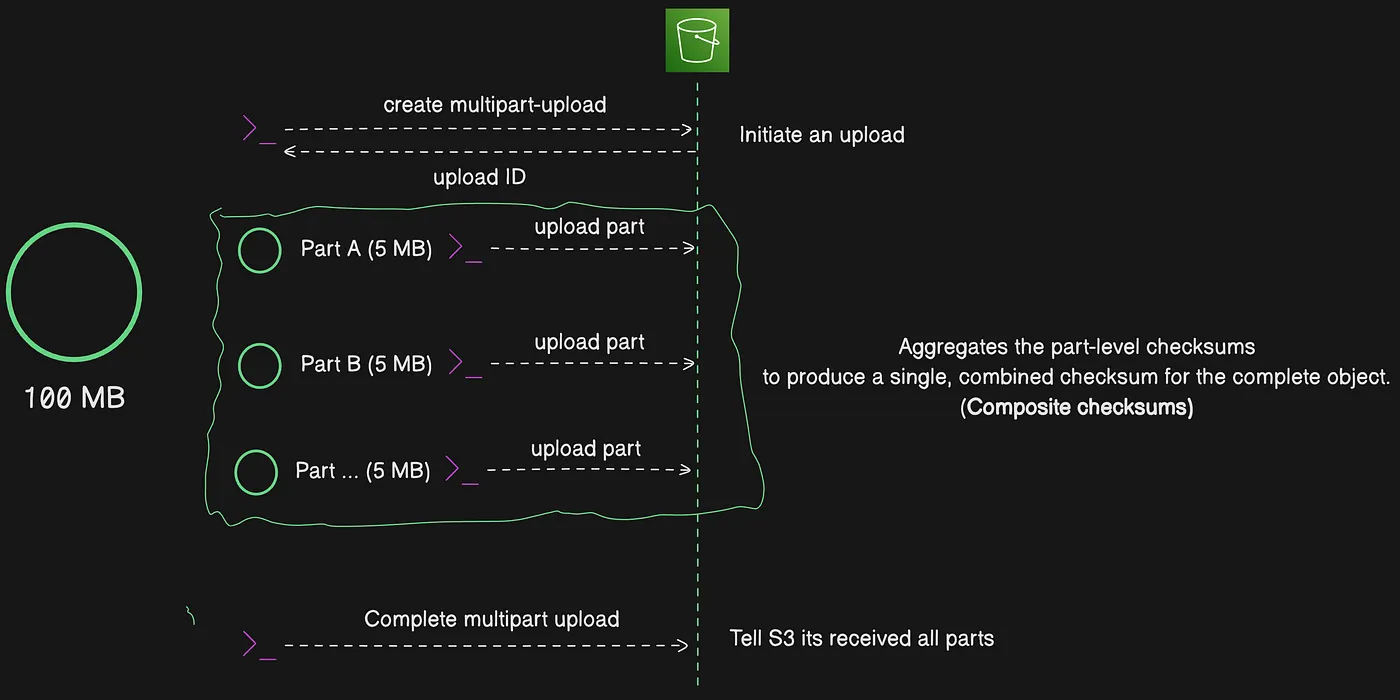 Composite checksum aggregating per-part checksums into a single value
For multipart upload part-level checksums (or composite checksums), Amazon S3 calculates the checksum for each individual part by using the specified checksum algorithm. You can use [UploadPart](https://docs.aws.amazon.com/AmazonS3/latest/API/API_UploadPart.html) to provide the checksum values for each part.
When each part’s checksum (for the whole object) is provided, S3 uses the stored checksum values of each part to calculate the full object checksum internally, comparing it with the provided checksum value. This minimizes compute costs since S3 can compute a checksum of the whole object using the checksum of the parts.
When an object is uploaded as a multipart upload, the entity tag (ETag) for the object is not an MD5 digest of the entire object. Instead, Amazon S3 calculates the MD5 digest of each individual part as it is uploaded. The MD5 digests are used to determine the ETag for the final object. Amazon S3 concatenates the bytes for the MD5 digests together and then calculates the MD5 digest of these concatenated values. During the final ETag creation step, Amazon S3 adds a dash with the total number of parts to the end.
Using Content-MD5 when uploading objects
Another way to verify the integrity of your object after uploading is to provide an MD5 digest of the object when you upload it. If you calculate the MD5 digest for your object, you can provide the digest with the PUT command by using the Content-MD5 header.
After uploading the object, Amazon S3 calculates the MD5 digest of the object and compares it to the value that you provided. The request succeeds only if the two digests match.
Supplying an MD5 digest isn’t required, but you can use it to verify the integrity of the object as part of the upload process.
Organizing, listing, and working with Objects
In Amazon S3, you can use prefixes to organize your storage. A prefix is a logical grouping of the objects in a bucket. The prefix value is similar to a directory name that enables you to store similar data under the same directory in a bucket. When you programmatically upload objects, you can use prefixes to organize your data.
In the Amazon S3 console, prefixes are called folders. You can view all your objects and folders in the S3 console by navigating to a bucket. You can also view information about each object, including object properties.
You can use prefixes to organize the data that you store in Amazon S3 buckets. A prefix is a string of characters at the beginning of the object key name. A prefix can be any length, subject to the maximum length of the object key name (1,024 bytes). You can think of prefixes as a way to organize your data in a similar way to directories. However, prefixes are not directories.
Searching by prefix limits the results to only those keys that begin with the specified prefix. The delimiter causes a list operation to roll up all the keys that share a common prefix into a single summary list result.
The purpose of the prefix and delimiter parameters is to help you organize and then browse your keys hierarchically. To do this, first pick a delimiter for your bucket, such as slash (/), that doesn’t occur in any of your anticipated key names. You can use another character as a delimiter. There is nothing unique about the slash (/) character, but it is a very common prefix delimiter. Next, construct your key names by concatenating all containing levels of the hierarchy, separating each level with the delimiter.
For example, if you were storing information about cities, you might naturally organize them by continent, then by country, then by province or state. Because these names don’t usually contain punctuation, you might use slash (/) as the delimiter. The following examples use a slash (/) delimiter.
- Europe/France/Nouvelle-Aquitaine/Bordeaux
- North America/Canada/Quebec/Montreal
- North America/USA/Washington/Bellevue
- North America/USA/Washington/Seattle
If you stored data for every city in the world in this manner, it would become awkward to manage a flat key namespace. By using Prefix and Delimiter with the list operation, you can use the hierarchy that you’ve created to list your data.
Listing objects using prefixes and delimiters
If you issue a list request with a delimiter, you can browse your hierarchy at only one level, skipping over and summarizing the (possibly millions of) keys nested at deeper levels. For example, assume that you have a bucket (_amzn-s3-demo-bucket_) with the following keys:
sample.jpg
photos/2006/January/sample.jpg
photos/2006/February/sample2.jpg
photos/2006/February/sample3.jpg
photos/2006/February/sample4.jpg
The sample bucket has only the sample.jpg object at the root level. To list only the root-level objects in the bucket, you send a GET request on the bucket with the slash (/) delimiter character. In response, Amazon S3 returns the sample.jpg object key because it does not contain the / delimiter character. All other keys contain the delimiter character. Amazon S3 groups these keys and returns a single CommonPrefixes element with the prefix valuephotos/, which is a substring from the beginning of these keys to the first occurrence of the specified delimiter.
Download and Upload objects with pre-signed URLs
You can use presigned URLs to grant time-limited access to objects in Amazon S3 without updating your bucket policy. A presigned URL can be entered in a browser or used by a program to download an object. The credentials used by the presigned URL are those of the AWS user who generated the URL.
You can also use presigned URLs to allow someone to upload a specific object to your Amazon S3 bucket. This allows an upload without requiring another party to have AWS security credentials or permissions. If an object with the same key already exists in the bucket as specified in the presigned URL, Amazon S3 replaces the existing object with the uploaded object.
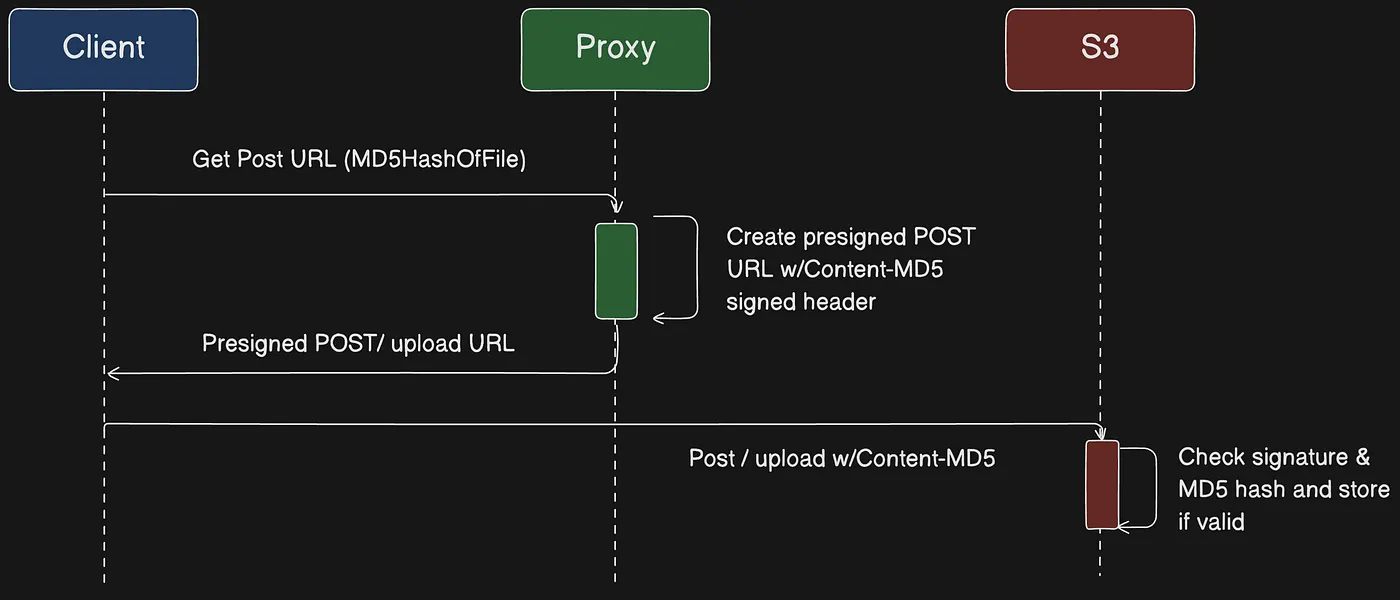 Using a presigned URL to grant time-limited access to an object
You can use the presigned URL multiple times, up to the expiration date and time.
When you create a presigned URL, you must provide your security credentials, and then specify the following:
- An Amazon S3 bucket
- An object key (if downloading this object will be in your Amazon S3 bucket, if uploading this is the file name to be uploaded)
- An HTTP method (
GETfor downloading objects orPUTfor uploading) - An expiration time interval
Currently, Amazon S3 presigned URLs don’t support using the following data-integrity checksum algorithms (CRC32, CRC32C, SHA-1, SHA-256) when you upload objects.
To verify the integrity of your object after uploading, you can provide an MD5 digest of the object when you upload it with a presigned URL.
Expiration time for presigned URLs
If you created a presigned URL by using a temporary token, then the URL expires when the token expires. In general, a presigned URL expires when the credential you used to create it is revoked, deleted, or deactivated. This is true even if the URL was created with a later expiration time.
S3 Access Points
Amazon S3 Access Points are a feature of Amazon Simple Storage Service (S3) that allow you to create customized access configurations for your S3 buckets. They simplify managing and controlling access to shared data by providing unique endpoints, each with its own permissions and policies. Here’s a detailed explanation:
Why Use S3 Access Points?
- Simplify Permissions Management: Instead of managing bucket-wide policies, you can create multiple access points for different users or applications, each with a specific policy tailored to its needs.
- Improve Security: By isolating access permissions through individual access points, you minimize the risk of accidental or unauthorized access to other parts of the bucket.
- Scale with Data Lakes: For large-scale data lakes or environments with multiple teams accessing shared data, access points help streamline access control without complicating bucket policy management.
Let us take an example to understand S3 Access points in more depth, You have an Amazon S3 bucket named data-lake-bucket storing different types of data:
sales-data/marketing-data/engineering-data/
You want to:
- Provide the Sales Team access to
sales-data/only. - Allow the Marketing Team access to
marketing-data/and allow uploads of campaign files. - Enable the Engineering Team to access
engineering-data/but restrict it to internal usage within a private VPC.
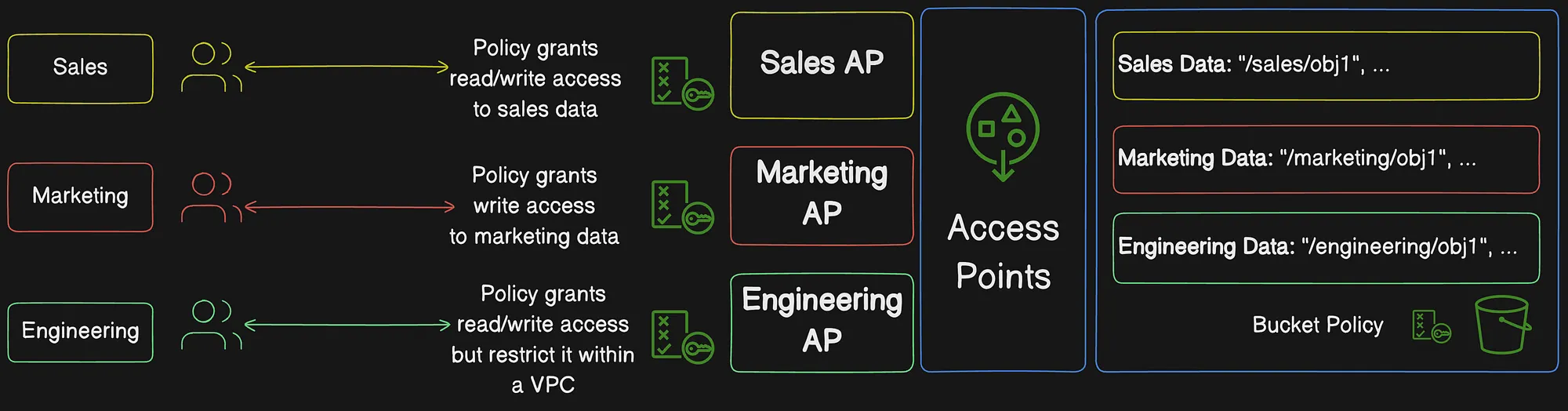 Each team uses its own access point with a policy scoped to a prefix
Transforming objects with S3 Object Lambda
With Amazon S3 Object Lambda, you can add your own code to Amazon S3 GET, LIST, and HEAD requests to modify and process data as it is returned to an application. You can use custom code to modify the data returned by S3 GET requests to filter rows, dynamically resize and watermark images, redact confidential data, and more.
You can also use S3 Object Lambda to modify the output of S3 LIST requests to create a custom view of all objects in a bucket and S3 HEAD requests to modify object metadata such as object name and size. You can use S3 Object Lambda as an origin for your Amazon CloudFront distribution to tailor data for end users, such as automatically resizing images, transcoding older formats (like from JPEG to WebP), or stripping metadata.
How S3 Object Lambda works
S3 Object Lambda uses AWS Lambda functions to automatically process the output of standard S3 GET, LIST, or HEAD requests. AWS Lambda is a serverless compute service that runs customer-defined code without requiring management of underlying compute resources. You can author and run your own custom Lambda functions, tailoring the data transformation to your specific use cases.
After you configure a Lambda function, you attach it to an S3 Object Lambda service endpoint, known as an Object Lambda Access Point. The Object Lambda Access Point uses a standard S3 access point, known as a supporting access point, to access Amazon S3.
When you send a request to your Object Lambda Access Point, Amazon S3 automatically calls your Lambda function. Any data retrieved by using an S3 GET, LIST, or HEAD request through the Object Lambda Access Point returns a transformed result back to the application. All other requests are processed as normal, as illustrated in the following diagram.
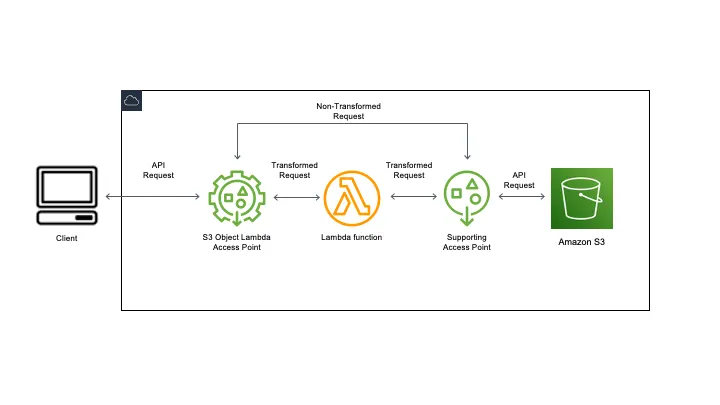 S3 Object Lambda calls a Lambda function to transform data as it is returned
S3 Batch Operations
You can use S3 Batch Operations to perform large-scale batch operations on Amazon S3 objects. S3 Batch Operations can perform a single operation on lists of Amazon S3 objects that you specify. A single job can perform a specified operation on billions of objects containing exabytes of data. Amazon S3 tracks progress, sends notifications, and stores a detailed completion report of all actions, providing a fully managed, auditable, and serverless experience. You can use S3 Batch Operations through the Amazon S3 console, AWS CLI, AWS SDKs, or Amazon S3 REST API.
Use S3 Batch Operations to copy objects and set object tags or access control lists (ACLs). You can also initiate object restores from S3 Glacier Flexible Retrieval or invoke an AWS Lambda function to perform custom actions using your objects. You can perform these operations on a custom list of objects, or you can use an Amazon S3 Inventory report to easily generate lists of objects. Amazon S3 Batch Operations use the same Amazon S3 API operations that you already use with Amazon S3.
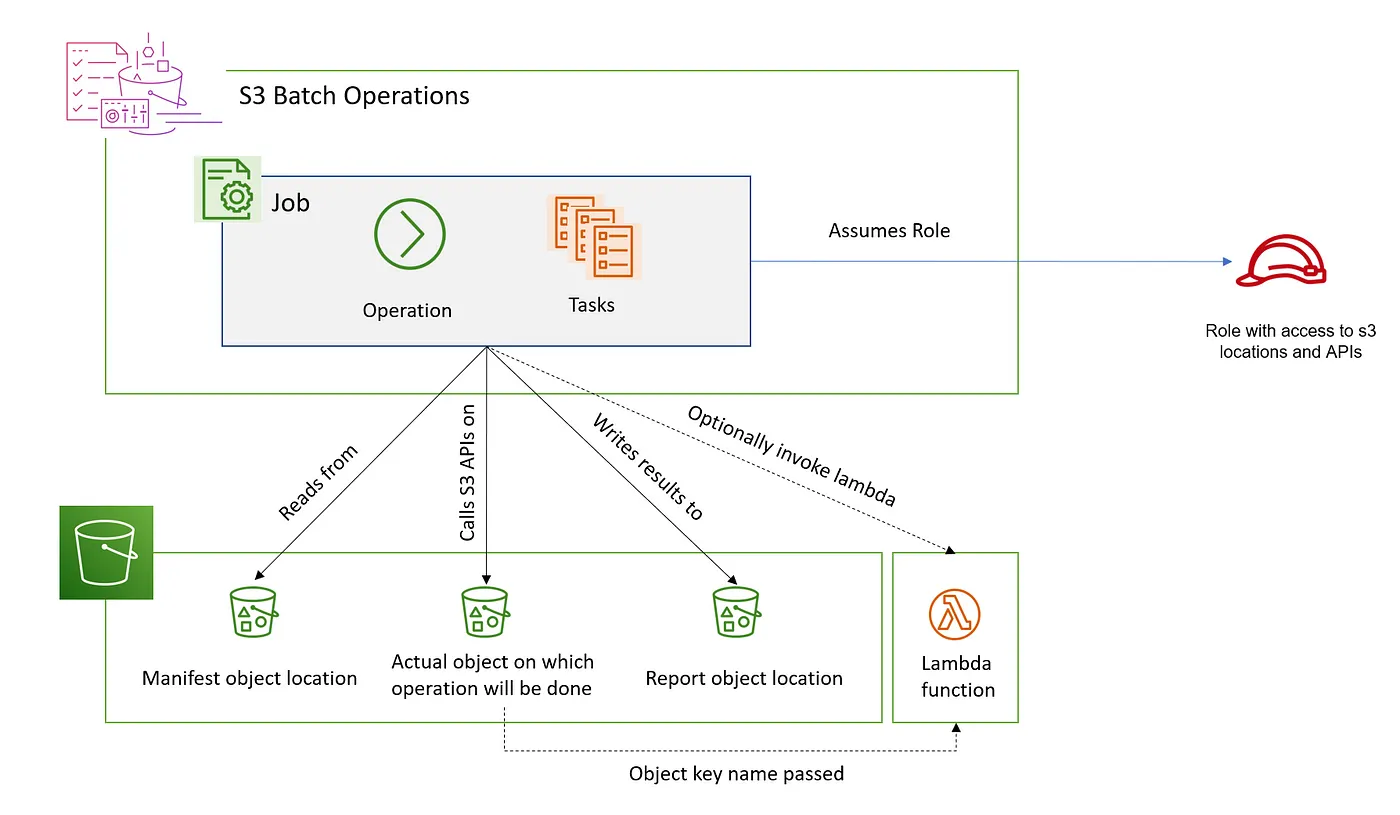 S3 Batch Operations runs one operation across many objects from a manifest
Terminology
This section uses the terms manifests, jobs, operations, and tasks, which are defined as follows:
Manifest
A manifest is an Amazon S3 object that contains the object keys that you want Amazon S3 to act upon. If you want to create a Batch Operations job, you must supply a manifest. Your user-generated manifest must contain the bucket name, object key, and optionally, the object version for each object. If you supply a user-generated manifest, it must be in the form of an Amazon S3 Inventory report or a CSV file.
You can also have Amazon S3 generate a manifest automatically based on object filter criteria that you specify when you create your job. This option is available for S3 Batch Replication jobs that you create in the Amazon S3 console, or for any job type that you create by using the AWS Command Line Interface (AWS CLI), AWS SDKs, or Amazon S3 REST API.
Job
A job is the basic unit of work for S3 Batch Operations. A job contains all of the information necessary to run the specified operation on the objects listed in the manifest. After you provide this information and request that the job begin, the job performs the operation for each object in the manifest.
Operation
The operation is the type of API action, such as copying objects, that you want the Batch Operations job to run. Each job performs a single type of operation across all objects that are specified in the manifest.
Task
A task is the unit of execution for a job. A task represents a single call to an Amazon S3 or AWS Lambda API operation to perform the job’s operation on a single object. Over the course of a job’s lifetime, S3 Batch Operations create one task for each object specified in the manifest.
S3 Inventory
You can use Amazon S3 Inventory to help manage your storage. For example, you can use it to audit and report on the replication and encryption status of your objects for business, compliance, and regulatory needs. You can also simplify and speed up business workflows and big data jobs by using Amazon S3 Inventory, which provides a scheduled alternative to the Amazon S3 synchronous List API operations.
Amazon S3 Inventory does not use the
ListAPI operations to audit your objects and does not affect the request rate of your bucket.
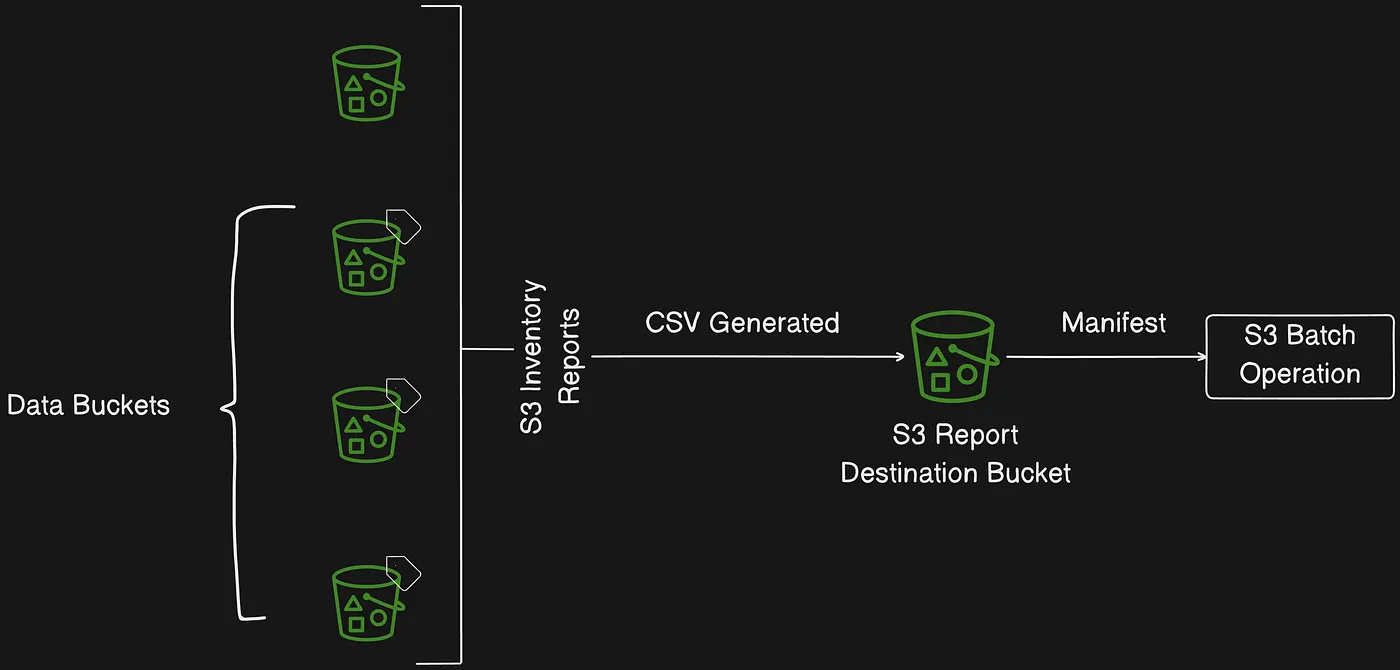 S3 Inventory exports a CSV file as the input manifest for S3 Batch Operations
S3 Inventory and S3 Batch operations play complementary rules with each other, while S3 inventory generates a CSV file depending on the objects you have in your buckets, your S3 Batch operation can use these CSV files to run specific jobs against them.
How an S3 Batch Operations job works
A job is the basic unit of work for S3 Batch Operations. A job contains all of the information necessary to run the specified operation on a list of objects. To create a job, you give S3 Batch Operations a list of objects and specify the action to perform on those objects.
A batch job performs a specified operation on every object that’s included in its manifest. A manifest lists the objects that you want a batch job to process and it is stored as an object in a bucket. You can use a comma-separated values (CSV) report as a manifest, which makes it easy to create large lists of objects located in a bucket. You can also specify a manifest in a simple CSV format that enables you to perform batch operations on a customized list of objects contained within a single bucket.
After you create a job, Amazon S3 processes the list of objects in the manifest and runs the specified operation against each object. While a job is running, you can monitor its progress programmatically or through the Amazon S3 console. You can also configure a job to generate a completion report when it finishes.
Data Encryption
Data protection refers to protecting data while it’s in transit (as it travels to and from Amazon S3) and at rest (while it is stored on disks in Amazon S3 data centers). You can protect data in transit by using Secure Socket Layer/Transport Layer Security (SSL/TLS) or client-side encryption. For protecting data at rest in Amazon S3, you have the following options:
- Server-side encryption — Amazon S3 encrypts your objects before saving them on disks in AWS data centers and then decrypts the objects when you download them. All Amazon S3 buckets have encryption configured by default, and all new objects that are uploaded to an S3 bucket are automatically encrypted at rest.
- Client-side encryption — You encrypt your data client-side and upload the encrypted data to Amazon S3. In this case, you manage the encryption process, encryption keys, and related tools.
Server-side encryption
Server-side encryption is the encryption of data at its destination by the application or service that receives it. Amazon S3 encrypts your data at the object level as it writes it to disks in AWS data centers and decrypts it for you when you access it. As long as you authenticate your request and you have access permissions, there is no difference in the way you access encrypted or unencrypted objects. For example, if you share your objects by using a presigned URL, that URL works the same way for both encrypted and unencrypted objects. Additionally, when you list objects in your bucket, the list API operations return a list of all objects, regardless of whether they are encrypted.
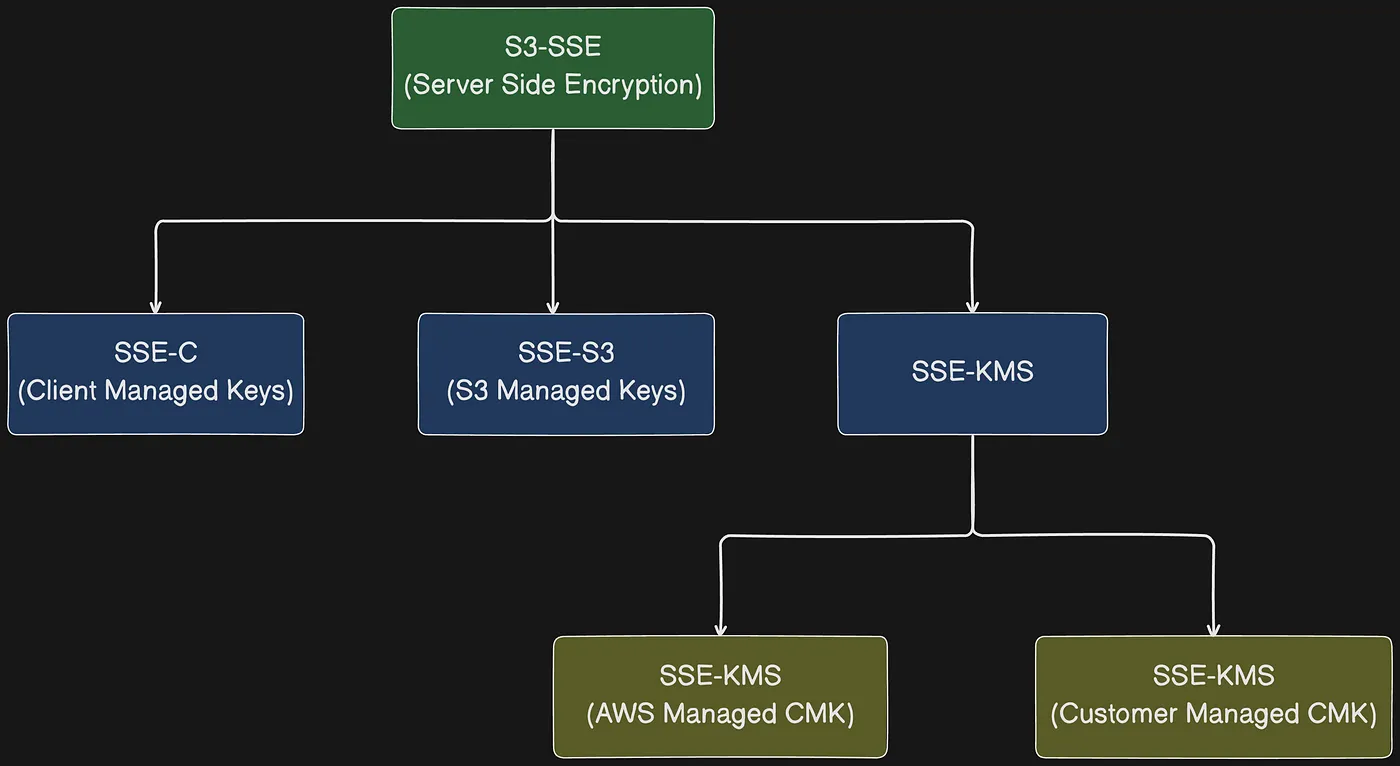 Server-side and client-side encryption options in S3
All Amazon S3 buckets have encryption configured by default, and all new objects that are uploaded to an S3 bucket are automatically encrypted at rest. Server-side encryption with Amazon S3 managed keys (SSE-S3) is the default encryption configuration for every bucket in Amazon S3. To use a different type of encryption, you can either specify the type of server-side encryption to use in your S3 PUT requests, or you can set the default encryption configuration in the destination bucket.
If you want to specify a different encryption type in your PUT requests, you can use server-side encryption with AWS Key Management Service (AWS KMS) keys (SSE-KMS), dual-layer server-side encryption with AWS KMS keys (DSSE-KMS), or server-side encryption with customer-provided keys (SSE-C). If you want to set a different default encryption configuration in the destination bucket, you can use SSE-KMS or DSSE-KMS.
Server-side encryption with Amazon S3 managed keys (SSE-S3)
All new object uploads to Amazon S3 buckets are encrypted by default with server-side encryption with Amazon S3 managed keys (SSE-S3).
Server-side encryption protects data at rest. Amazon S3 encrypts each object with a unique key. As an additional safeguard, it encrypts the key itself with a key that it rotates regularly. Amazon S3 server-side encryption uses 256-bit Advanced Encryption Standard Galois/Counter Mode (AES-GCM) to encrypt all uploaded objects.
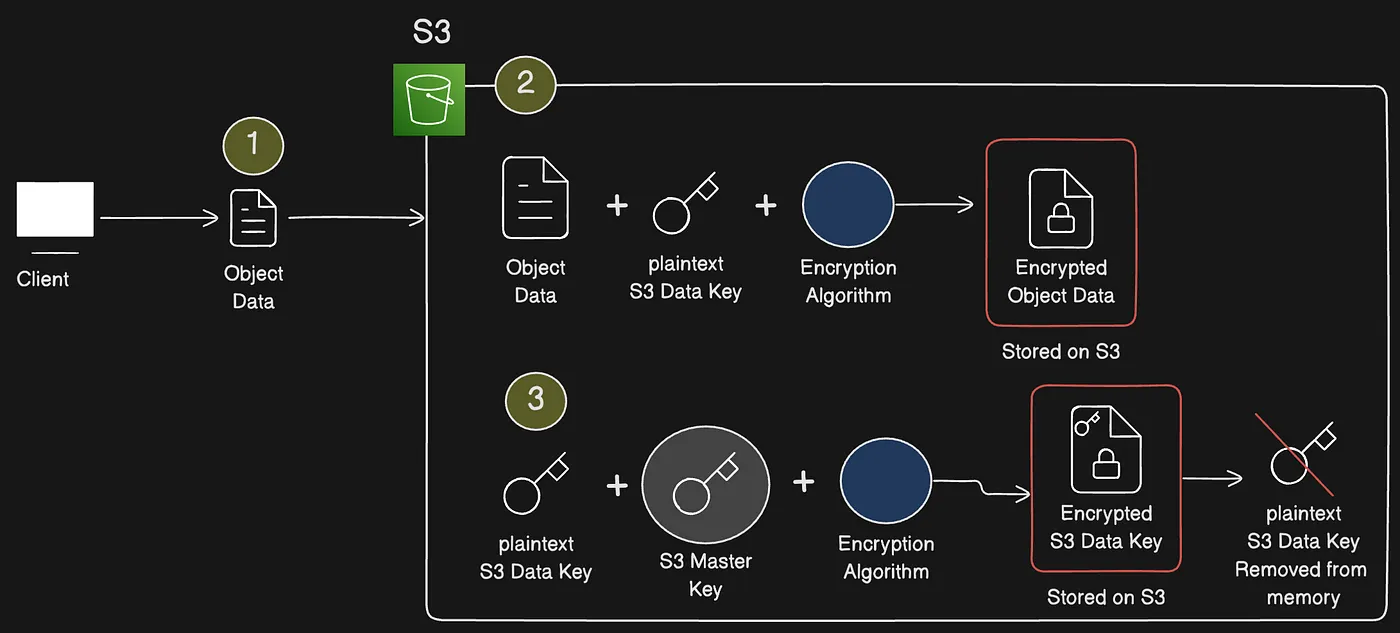 SSE-S3 flow using a root key to encrypt a data key for each object
The encryption happens with the help of the AWS S3 generated “root/master key”, which is fully governed by AWS S3.
- This AWS S3 “root/master key” generates a separate “Data Key” for each object, which is uploaded to S3.
- The “Data Key” is used to encrypt the object
- AWS S3 “root/master key is used to encrypt the “Data Key”
- Then both the “encrypted object” and the “encrypted Data Key” are stored alongside in the S3 storage.
- The “Data Key”, which was generated is then discarded just after the encryption process.
- Since this is a symmetric encryption, the decryption of the object is possible by using the AWS S3 “root/master key”. AWS S3 “root/master key” is used to decrypt the encrypted “Data Key”, which then can be used to decrypt the object.
There are no additional fees for using server-side encryption with Amazon S3 managed keys (SSE-S3). However, requests to configure the default encryption feature incur standard Amazon S3 request charges.
Server-side encryption with AWS KMS keys (SSE-KMS)
AWS KMS is a service that combines secure, highly available hardware and software to provide a key management system scaled for the cloud. Amazon S3 uses server-side encryption with AWS KMS (SSE-KMS) to encrypt your S3 object data.
Also, when SSE-KMS is requested for the object, the S3 checksum (as part of the object’s metadata) is stored in encrypted form.
When you use server-side encryption with AWS KMS (SSE-KMS), you can use the default AWS managed key, or you can specify a customer managed key that you have already created. AWS KMS supports envelope encryption. S3 uses the AWS KMS features for envelope encryption to further protect your data. Envelope encryption is the practice of encrypting your plain text data with a data key, and then encrypting that data key with a KMS key.
Objects encrypted using SSE-KMS with AWS managed keys can’t be shared cross-account. If you need to share SSE-KMS data cross-account, you must use a customer managed key from AWS KMS.
If you want to use a customer managed key for SSE-KMS, create a symmetric encryption customer managed key before you configure SSE-KMS. Then, when you configure SSE-KMS for your bucket, specify the existing customer managed key.
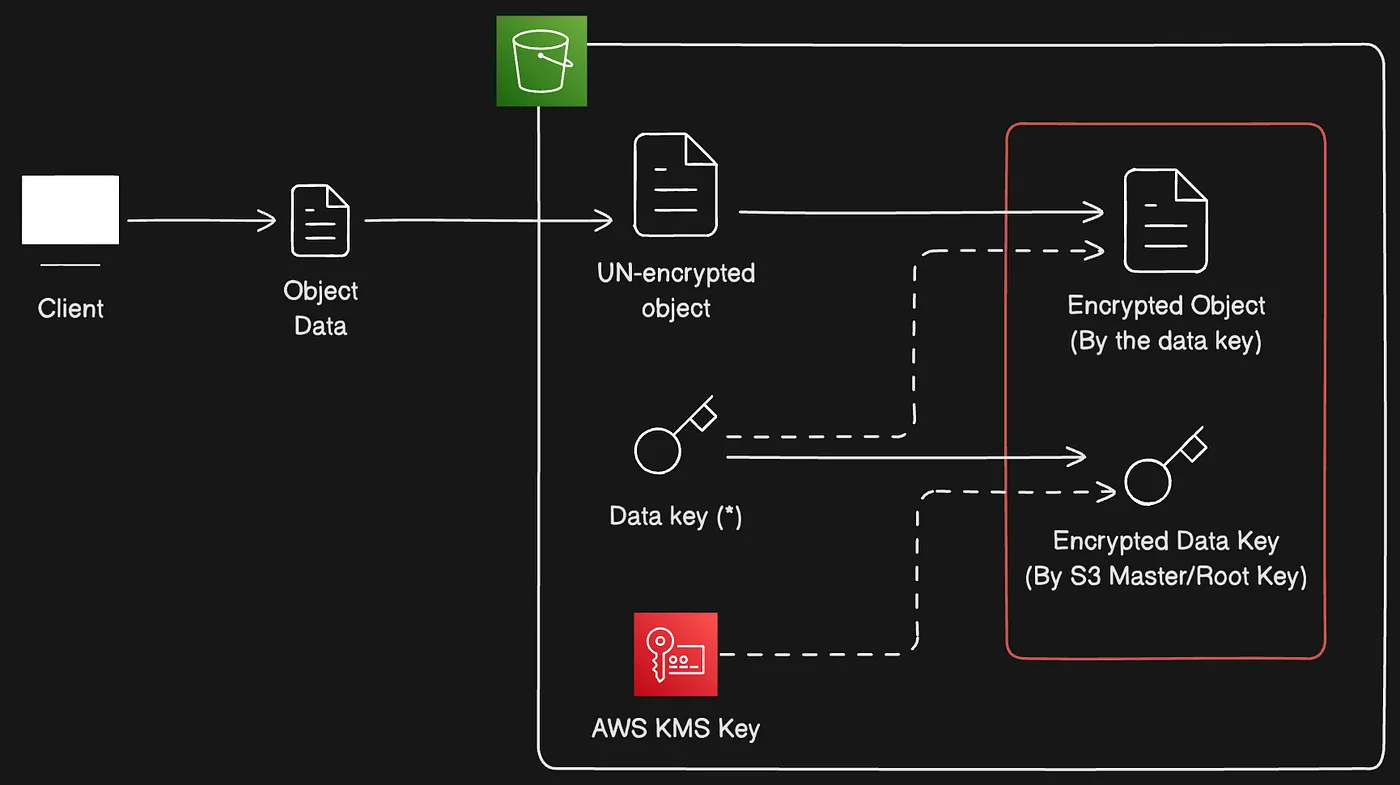 SSE-KMS flow using a KMS key and envelope encryption instead of a root key
In this method, AWS delegates the “root/master key” to AWS “KMS key” allowing to have a more flexible solution in terms of overcoming some of the shortcomings which were discussed before.
- AWS “KMS key” can generate a unique “Data Key” to encrypt each object that is uploaded to S3. This is quite similar to SSE-S3 method but it basically replaces the SSE-S3 “root/master key” with the AWS “KMS key”.
- With the AWS “KMS Key” approach, you have the ability to create your own “KMS Key”, which is known as the “Customer Managed CMK”. That will basically enable you to apply permissions, rotate keys and have robust role separation.
- The role separation for the AWS “KMS Key” can be done by limiting the AWS administrator role for the assigned AWS “KMS Key”.
S3 Bucket Keys
Amazon S3 Bucket Keys reduce the cost of Amazon S3 server-side encryption with AWS Key Management Service (AWS KMS) keys (SSE-KMS). Using a bucket-level key for SSE-KMS can reduce AWS KMS request costs by up to 99 percent by decreasing the request traffic from Amazon S3 to AWS KMS. With a few clicks in the AWS Management Console, and without any changes to your client applications, you can configure your bucket to use an S3 Bucket Key for SSE-KMS encryption on new objects.
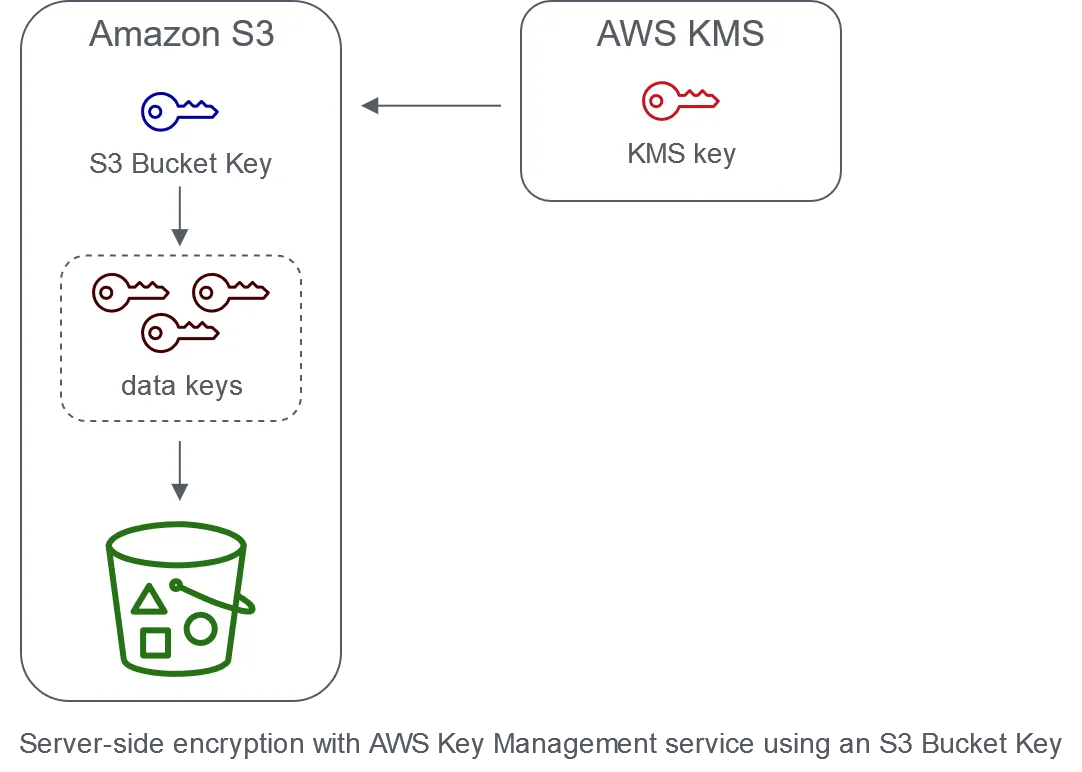 S3 Bucket Key reduces AWS KMS calls for objects using SSE-KMS
Workloads that access millions or billions of objects encrypted with SSE-KMS can generate large volumes of requests to AWS KMS. When you use SSE-KMS to protect your data without an S3 Bucket Key, Amazon S3 uses an individual AWS KMS data key for every object. In this case, Amazon S3 makes a call to AWS KMS every time a request is made against a KMS-encrypted object.
When you configure your bucket to use an S3 Bucket Key for SSE-KMS, AWS generates a short-lived bucket-level key from AWS KMS, then temporarily keeps it in S3. This bucket-level key will create data keys for new objects during its lifecycle. S3 Bucket Keys are used for a limited time period within Amazon S3, reducing the need for S3 to make requests to AWS KMS to complete encryption operations.
Dual-layer server-side encryption with AWS KMS keys (DSSE-KMS)
Using dual-layer server-side encryption with AWS Key Management Service (AWS KMS) keys (DSSE-KMS) applies two layers of encryption to objects when they are uploaded to Amazon S3. DSSE-KMS helps you more easily fulfill compliance standards that require you to apply multilayer encryption to your data and have full control of your encryption keys.
When you use DSSE-KMS with an Amazon S3 bucket, the AWS KMS keys must be in the same Region as the bucket. Also, when DSSE-KMS is requested for the object, the S3 checksum that’s part of the object’s metadata is stored in encrypted form.
Server-side encryption with customer-provided keys (SSE-C)
Server-side encryption is about protecting data at rest. Server-side encryption encrypts only the object data, not the object metadata. By using server-side encryption with customer-provided keys (SSE-C), you can store your data encrypted with your own encryption keys. With the encryption key that you provide as part of your request, Amazon S3 manages data encryption as it writes to disks and data decryption when you access your objects. Therefore, you don’t need to maintain any code to perform data encryption and decryption. The only thing that you need to do is manage the encryption keys that you provide.
When you upload an object, Amazon S3 uses the encryption key that you provide to apply AES-256 encryption to your data. Amazon S3 then removes the encryption key from memory. When you retrieve an object, you must provide the same encryption key as part of your request. Amazon S3 first verifies that the encryption key that you provided matches, and then it decrypts the object before returning the object data to you.
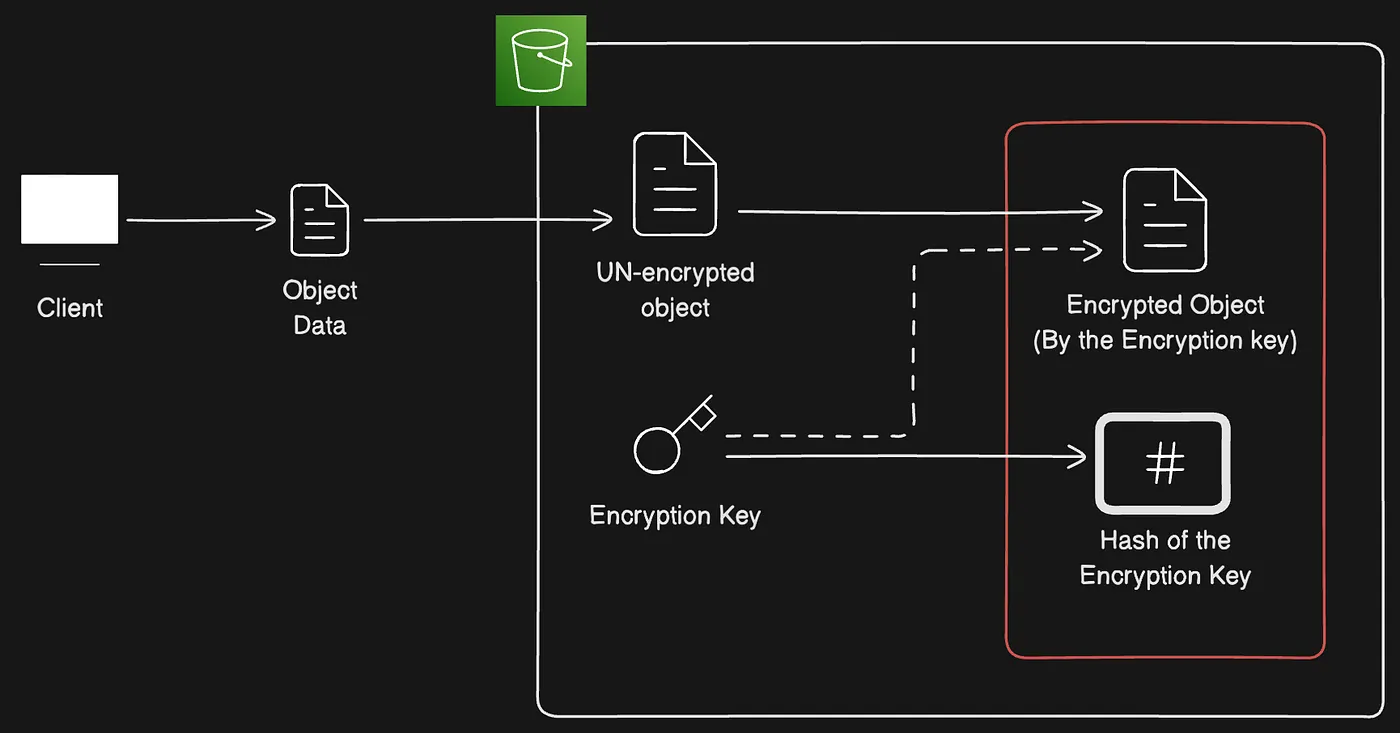 SSE-C flow using a client-provided encryption key to encrypt the object
- The client application needs to provide the unencrypted object and the “encryption key” to S3.
- S3 then uses the “encryption key” to encrypt the object and discards the “encryption key”.
- Before being discarded, the “encryption key” is hashed and stored along with the encrypted object.
Client-Side Encryption
Client-side encryption is the act of encrypting your data locally to help ensure its security in transit and at rest. To encrypt your objects before you send them to Amazon S3, use the Amazon S3 Encryption Client. When your objects are encrypted in this manner, your objects aren’t exposed to any third party, including AWS. Amazon S3 receives your objects already encrypted; Amazon S3 does not play a role in encrypting or decrypting your objects. You can use both the Amazon S3 Encryption Client and server-side encryption to encrypt your data. When you send encrypted objects to Amazon S3, Amazon S3 doesn’t recognize the objects as being encrypted, it only detects typical objects.
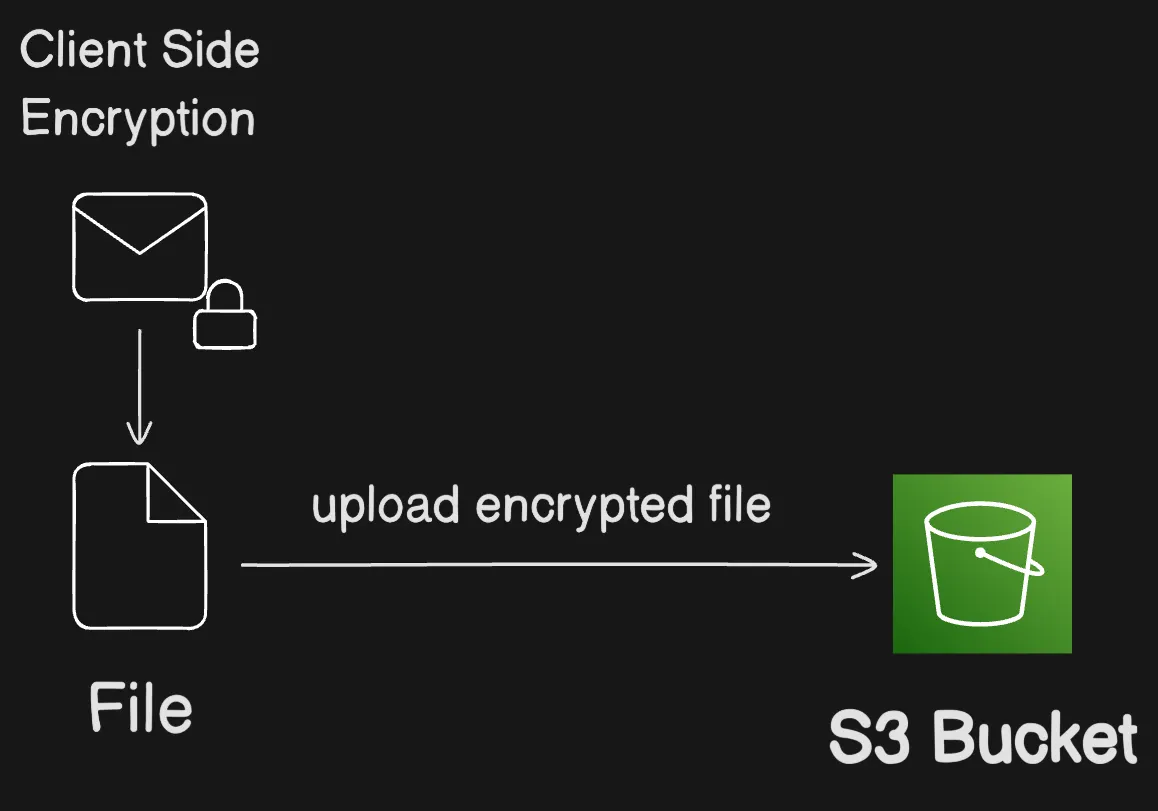 Client encrypts data locally before sending the encrypted object to S3
The Amazon S3 Encryption Client works as an intermediary between you and Amazon S3. After you instantiate the Amazon S3 Encryption Client, your objects are automatically encrypted and decrypted as part of your Amazon S3 PutObject and GetObject requests. Your objects are all encrypted with a unique data key. The Amazon S3 Encryption Client does not use or interact with bucket keys, even if you specify a KMS key as your wrapping key.
Data protection in Amazon S3
In addition to the resilience offered by the AWS global infrastructure, Amazon S3 offers a number of features to help protect your data against accidental deletions or Regional failures:
- S3 Replication: You can use live replication to enable automatic, asynchronous copying of objects across Amazon S3 buckets.
- Multi-Region Access Points and failover controls: Amazon S3 Multi-Region Access Points provide a global endpoint that applications can use to fulfill requests from S3 buckets that are located in multiple AWS Regions.
- S3 Versioning: Versioning is a means of keeping multiple variants of an object in the same bucket. You can use versioning to preserve, retrieve, and restore every version of every object stored in your Amazon S3 bucket.
- S3 Object Lock: You can use S3 Object Lock to store objects using a WORM model. Using S3 Object Lock, you can prevent an object from being deleted or overwritten for a fixed amount of time or indefinitely.
- AWS Backup: Amazon S3 is natively integrated with AWS Backup, a fully managed, policy-based service that you can use to centrally define backup policies to protect your data in Amazon S3
Replicating objects within and across Regions
You can use replication to enable automatic, asynchronous copying of objects across Amazon S3 buckets. Buckets that are configured for object replication can be owned by the same AWS account or by different accounts. You can replicate objects to a single destination bucket or to multiple destination buckets. The destination buckets can be in different AWS Regions or within the same Region as the source bucket.
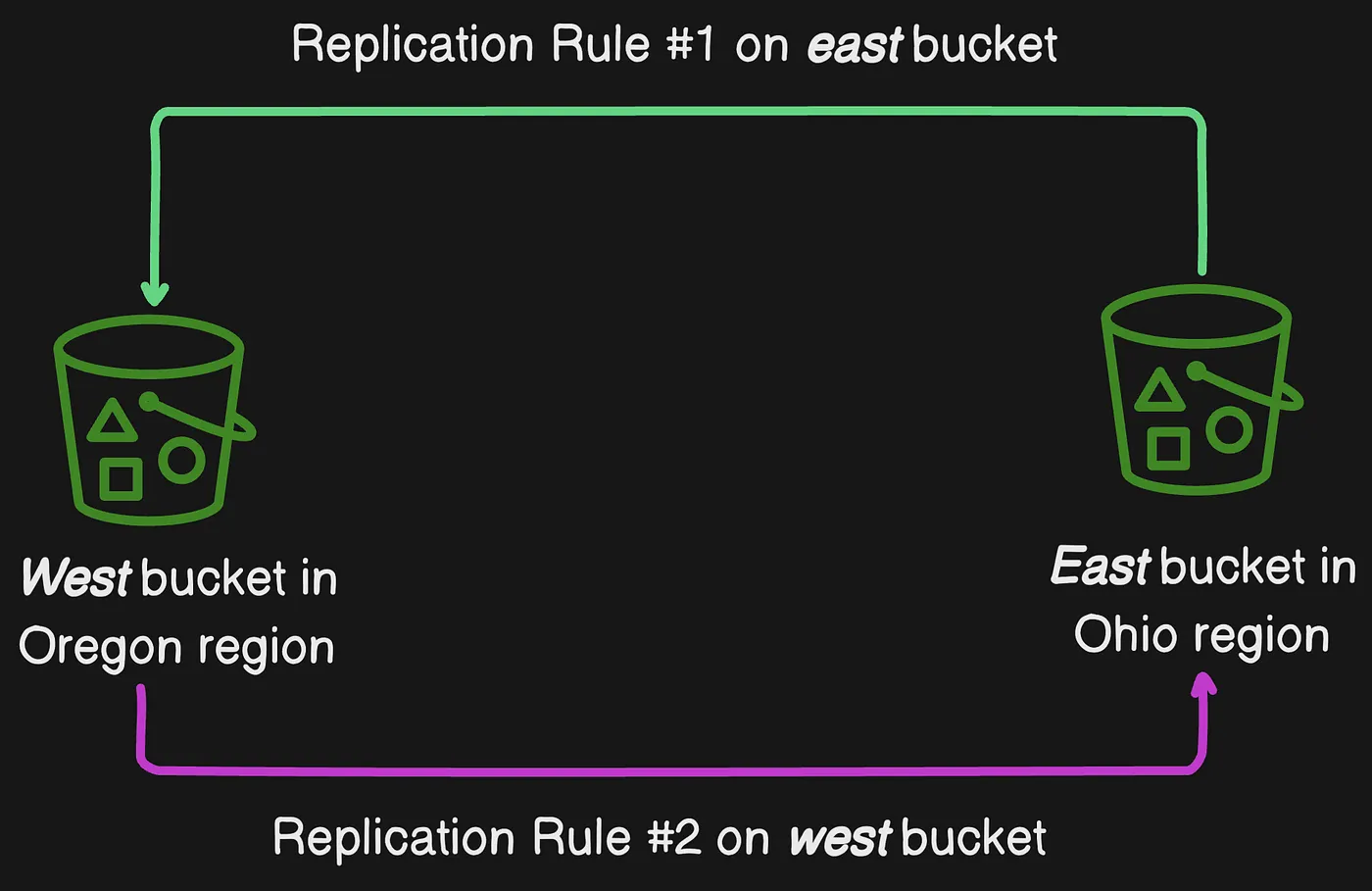 A replication rule automatically copies objects asynchronously to a destination bucket
There are two types of replication: live replication and on-demand replication.
- Live replication — To automatically replicate new and updated objects as they are written to the source bucket, use live replication. Live replication doesn’t replicate any objects that existed in the bucket before you set up replication. To replicate objects that existed before you set up replication, use on-demand replication.
- On-demand replication — To replicate existing objects from the source bucket to one or more destination buckets on demand, use S3 Batch Replication.
There are two forms of live replication: Cross-Region Replication (CRR) and Same-Region Replication (SRR).
- Cross-Region Replication (CRR) — You can use CRR to replicate objects across Amazon S3 buckets in different AWS Regions.
- Same-Region Replication (SRR) — You can use SRR to copy objects across Amazon S3 buckets in the same AWS Region.
Why use replication?
Replication can help you do the following:
- Replicate objects while retaining metadata — You can use replication to make copies of your objects that retain all metadata, such as the original object creation times and version IDs. This capability is important if you must ensure that your replica is identical to the source object.
- Replicate objects into different storage classes — You can use replication to directly put objects into S3 Glacier Flexible Retrieval, S3 Glacier Deep Archive, or another storage class in the destination buckets. You can also replicate your data to the same storage class and use lifecycle configurations on the destination buckets to move your objects to a colder storage class as they age.
- Maintain object copies under different ownership — Regardless of who owns the source object, you can tell Amazon S3 to change replica ownership to the AWS account that owns the destination bucket. This is referred to as the owner override option. You can use this option to restrict access to object replicas.
- Keep objects stored over multiple AWS Regions — To ensure geographic differences in where your data is kept, you can set multiple destination buckets across different AWS Regions. This feature might help you meet certain compliance requirements.
- Replicate objects within 15 minutes — To replicate your data in the same AWS Region or across different Regions within a predictable time frame, you can use S3 Replication Time Control (S3 RTC). S3 RTC replicates 99.99 percent of new objects stored in Amazon S3 within 15 minutes (backed by a service-level agreement).
- Sync buckets, replicate existing objects, and replicate previously failed or replicated objects — To sync buckets and replicate existing objects, use Batch Replication as an on-demand replication action.
- Replicate objects and fail over to a bucket in another AWS Region — To keep all metadata and objects in sync across buckets during data replication, use two-way replication (also known as bi-directional replication) rules before configuring Amazon S3 Multi-Region Access Point failover controls. Two-way replication rules help ensure that when data is written to the S3 bucket that traffic fails over to, that data is then replicated back to the source bucket.
When to use Cross-Region Replication
S3 Cross-Region Replication (CRR) is used to copy objects across Amazon S3 buckets in different AWS Regions. CRR can help you do the following:
- Meet compliance requirements — Although Amazon S3 stores your data across multiple geographically distant Availability Zones by default, compliance requirements might dictate that you store data at even greater distances. To satisfy these requirements, use Cross-Region Replication to replicate data between distant AWS Regions.
- Minimize latency — If your customers are in two geographic locations, you can minimize latency in accessing objects by maintaining object copies in AWS Regions that are geographically closer to your users.
- Increase operational efficiency — If you have compute clusters in two different AWS Regions that analyze the same set of objects, you might choose to maintain object copies in those Regions.
When to use Same-Region Replication
Same-Region Replication (SRR) is used to copy objects across Amazon S3 buckets in the same AWS Region. SRR can help you do the following:
- Aggregate logs into a single bucket — If you store logs in multiple buckets or across multiple accounts, you can easily replicate logs into a single, in-Region bucket. Doing so allows for simpler processing of logs in a single location.
- Configure live replication between production and test accounts — If you or your customers have production and test accounts that use the same data, you can replicate objects between those multiple accounts, while maintaining object metadata.
- Abide by data sovereignty laws — You might be required to store multiple copies of your data in separate AWS accounts within a certain Region. Same-Region Replication can help you automatically replicate critical data when compliance regulations don’t allow the data to leave your country.
When to use two-way replication (bi-directional replication)
- Build shared datasets across multiple AWS Regions — With replica modification sync, you can easily replicate metadata changes, such as object access control lists (ACLs), object tags, or object locks, on replication objects. This two-way replication is important if you want to keep all objects and object metadata changes in sync. You can enable replica modification sync on a new or existing replication rule when performing two-way replication between two or more buckets in the same or different AWS Regions.
- Keep data synchronized across Regions during failover — You can synchronize data in buckets between AWS Regions by configuring two-way replication rules with S3 Cross-Region Replication (CRR) directly from a Multi-Region Access Point. To make an informed decision on when to initiate failover, you can also enable S3 replication metrics so that you can monitor the replication in Amazon CloudWatch, in S3 Replication Time Control (S3 RTC), or from the Multi-Region Access Point.
- Make your application highly available — Even in the event of a Regional traffic disruption, you can use two-way replication rules to keep all metadata and objects in sync across buckets during data replication.
When to use S3 Batch Replication
Batch Replication replicates existing objects to different buckets as an on-demand option. Unlike live replication, these jobs can be run as needed. Batch Replication can help you do the following:
- Replicate existing objects — You can use Batch Replication to replicate objects that were added to the bucket before Same-Region Replication or Cross-Region Replication were configured.
- Replicate objects that previously failed to replicate — You can filter a Batch Replication job to attempt to replicate objects with a replication status of FAILED.
- Replicate objects that were already replicated — You might be required to store multiple copies of your data in separate AWS accounts or AWS Regions. Batch Replication can replicate existing objects to newly added destinations.
- Replicate replicas of objects that were created from a replication rule — Replication configurations create replicas of objects in destination buckets. Replicas of objects can be replicated only with Batch Replication.
Multi-Region Access Points
Amazon S3 Multi-Region Access Points provides a global endpoint that applications can use to fulfill requests from S3 buckets that are located in multiple AWS Regions. You can use Multi-Region Access Points to build multi-Region applications with the same architecture that’s used in a single Region, and then run those applications anywhere in the world. Instead of sending requests over the congested public internet, Multi-Region Access Points provides built-in network resilience with acceleration of internet-based requests to Amazon S3. Application requests made to a Multi-Region Access Point global endpoint uses AWS Global Accelerator to automatically route over the AWS global network to the closest proximity S3 bucket with an active routing status.
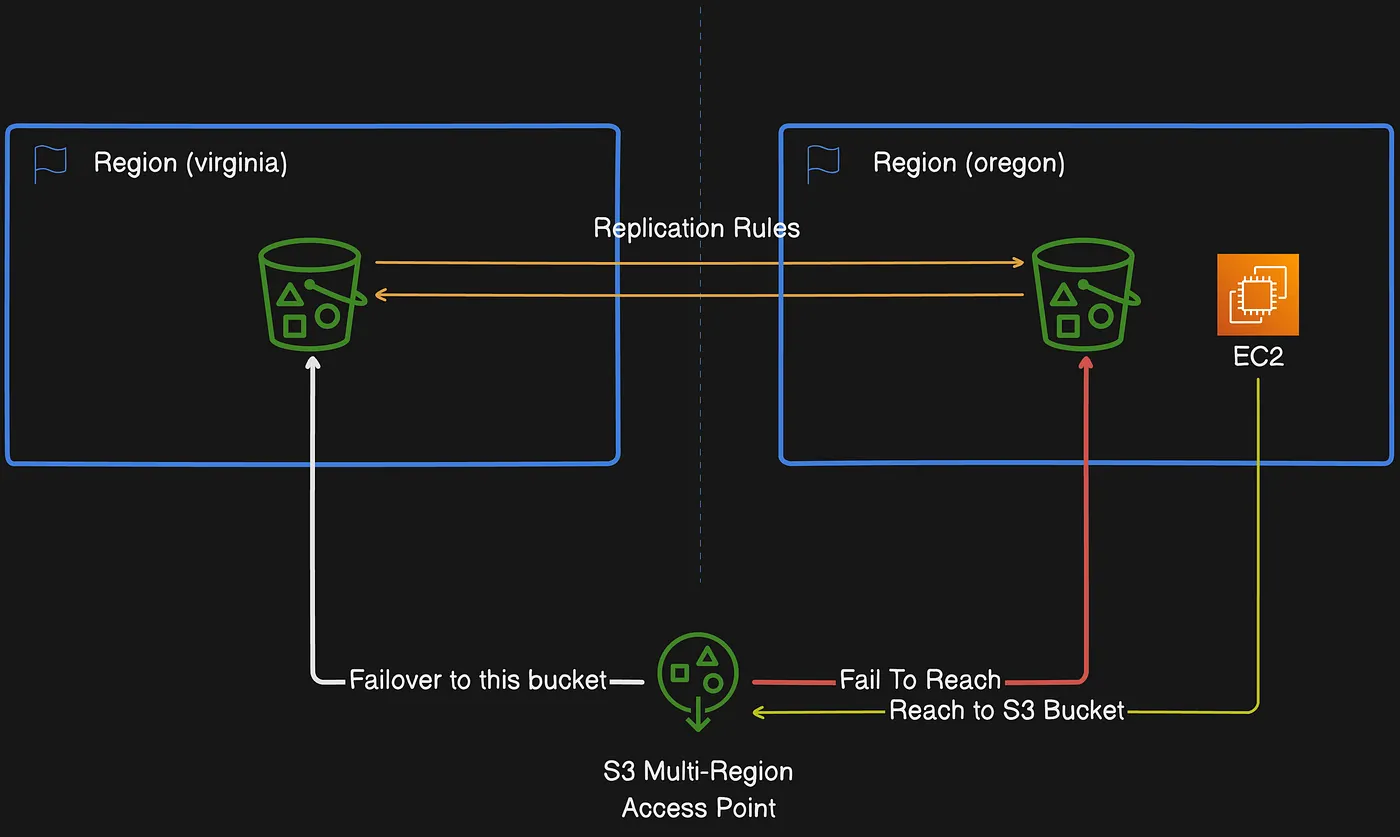 A Multi-Region Access Point routes requests to the nearest bucket over the AWS global network
If a Regional traffic disruption occurs, you can use Multi-Region Access Points failover controls to shift the S3 data request traffic between AWS Regions and redirect S3 traffic away from the disruptions within minutes. You can also test the application resiliency against a disruption to conduct application failover and perform disaster recovery simulations. If you need to connect and accelerate requests to S3 from outside of a VPC, you can simplify applications and network architecture with Amazon S3 Multi-Region Access Points. Your Multi-Region Access Points requests will be routed over the AWS global network and then back to S3 within the AWS Region, without having to traverse the public internet. As a result, you can build more highly available applications.
During your Multi-Region Access Points creation and setup, you’ll specify a set of AWS Regions where you want to store data to be served through that Multi-Region Access Point. You can use the provided Multi-Region Access Points endpoint name to connect your clients. After you’ve established your client connections, you can select the existing or new buckets that you’d like to route the Multi-Region Access Points requests between. Then, use S3 Cross-Region Replication (CRR) rules to synchronize data among buckets in those Regions.
After you’ve set up your Multi-Region Access Point. you can then request or write data through the Multi-Region Access Points global endpoint. Amazon S3 automatically serves requests to the replicated data set from the closest available Region.
S3 Versioning
Versioning in Amazon S3 is a means of keeping multiple variants of an object in the same bucket. You can use the S3 Versioning feature to preserve, retrieve, and restore every version of every object stored in your buckets. With versioning you can recover more easily from both unintended user actions and application failures. After versioning is enabled for a bucket, if Amazon S3 receives multiple write requests for the same object simultaneously, it stores all of those objects.
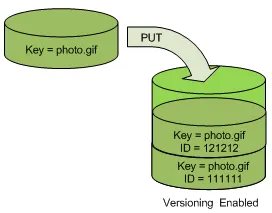 A bucket without versioning keeps only one version of an object
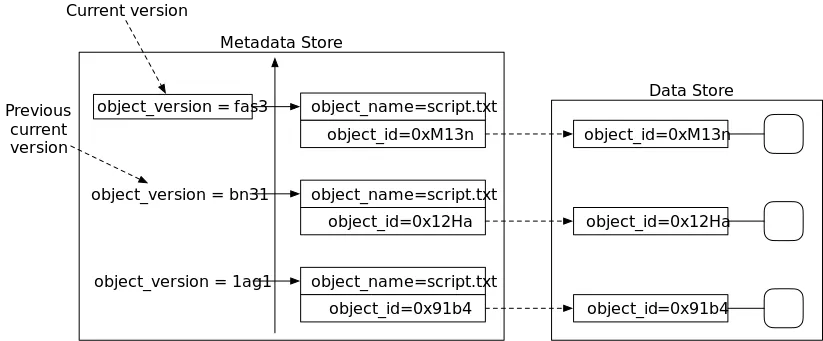 A versioning-enabled bucket keeps multiple versions each with its own version ID
Versioning-enabled buckets can help you recover objects from accidental deletion or overwrite. For example, if you delete an object, Amazon S3 inserts a delete marker instead of removing the object permanently. The delete marker becomes the current object version. If you overwrite an object, it results in a new object version in the bucket.
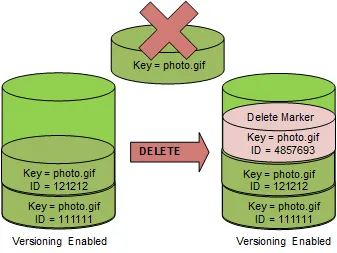 Deleting an object just inserts a delete marker instead of removing it permanently
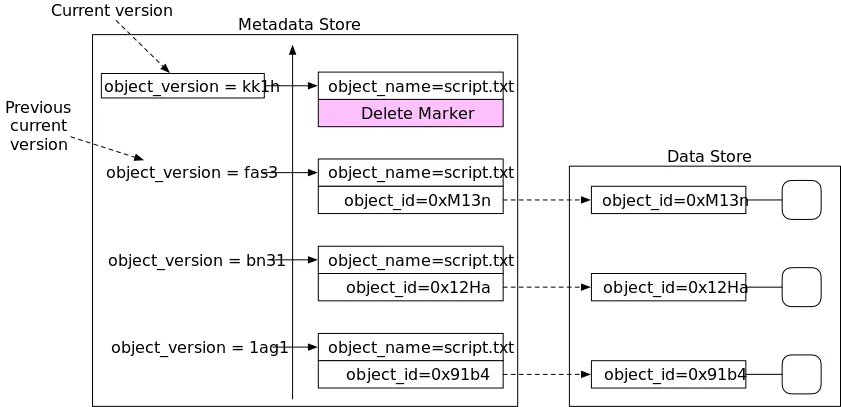 Overwriting an object creates a new version and keeps the older one
By default, S3 Versioning is disabled on buckets, and you must explicitly enable it.
Buckets can be in one of three states:
- Unversioned (the default)
- Versioning-enabled
- Versioning-suspended
You enable and suspend versioning at the bucket level. After you version-enable a bucket, it can never return to an unversioned state. But you can suspend versioning on that bucket.
The versioning state applies to all (never some) of the objects in that bucket. When you enable versioning in a bucket, all new objects are versioned and given a unique version ID. Objects that already existed in the bucket at the time versioning was enabled will thereafter always be versioned and given a unique version ID when they are modified by future requests. Note the following:
- Objects that are stored in your bucket before you set the versioning state have a version ID of
null. When you enable versioning, existing objects in your bucket do not change. What changes is how Amazon S3 handles the objects in future requests. - The bucket owner (or any user with appropriate permissions) can suspend versioning to stop accruing object versions. When you suspend versioning, existing objects in your bucket do not change. What changes is how Amazon S3 handles objects in future requests.
Locking objects with Object Lock
S3 Object Lock can help prevent Amazon S3 objects from being deleted or overwritten for a fixed amount of time or indefinitely. Object Lock uses a write-once-read-many (WORM) model to store objects. You can use Object Lock to help meet regulatory requirements that require WORM storage, or to add another layer of protection against object changes or deletion.
Object Lock provides two ways to manage object retention: retention periods and legal holds. An object version can have a retention period, a legal hold, or both.
- Retention period — A retention period specifies a fixed period of time during which an object version remains locked. You can set a unique retention period for individual objects. Additionally, you can set a default retention period on an S3 bucket. You may also restrict the minimum and maximum allowable retention periods with the
s3:object-lock-remaining-retention-dayscondition key in the bucket policy. This helps you establish a range of retention periods and by restricting retention periods that may be shorter or longer than this range. - Legal hold — A legal hold provides the same protection as a retention period, but it has no expiration date. Instead, a legal hold remains in place until you explicitly remove it. Legal holds are independent from retention periods and are placed on individual object versions.
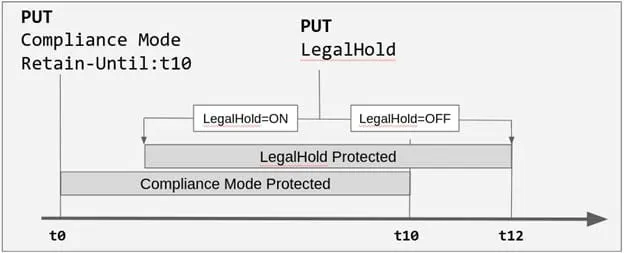 Object Lock uses a WORM model with retention periods and legal holds
Object Lock works only in buckets that have S3 Versioning enabled. When you lock an object version, Amazon S3 stores the lock information in the metadata for that object version. Placing a retention period or a legal hold on an object protects only the version that’s specified in the request. Retention periods and legal holds don’t prevent new versions of the object from being created, or delete markers to be added on top of the object.
Retention periods
A retention period protects an object version for a fixed amount of time. When you place a retention period on an object version, Amazon S3 stores a timestamp in the object version’s metadata to indicate when the retention period expires. After the retention period expires, the object version can be overwritten or deleted.
You can place a retention period explicitly on an individual object version or on a bucket’s properties so that it applies to all objects in the bucket automatically. When you apply a retention period to an object version explicitly, you specify a Retain Until Date for the object version. Amazon S3 stores this date in the object version’s metadata.
You can also set a retention period in a bucket’s properties. When you set a retention period on a bucket, you specify a duration, in either days or years, for how long to protect every object version placed in the bucket. When you place an object in the bucket, Amazon S3 calculates a Retain Until Date for the object version by adding the specified duration to the object version’s creation timestamp. The object version is then protected exactly as though you explicitly placed an individual lock with that retention period on the object version.
Like all other Object Lock settings, retention periods apply to individual object versions. Different versions of a single object can have different retention modes and periods.
For example, suppose that you have an object that is 15 days into a 30-day retention period, and you PUT an object into Amazon S3 with the same name and a 60-day retention period. In this case, your PUT request succeeds, and Amazon S3 creates a new version of the object with a 60-day retention period. The older version maintains its original retention period and becomes deletable in 15 days.
Retention modes
S3 Object Lock provides two retention modes that apply different levels of protection to your objects:
- Compliance mode
- Governance mode
In compliance mode, a protected object version can’t be overwritten or deleted by any user, including the root user in your AWS account. When an object is locked in compliance mode, its retention mode can’t be changed, and its retention period can’t be shortened. Compliance mode helps ensure that an object version can’t be overwritten or deleted for the duration of the retention period.
In governance mode, users can’t overwrite or delete an object version or alter its lock settings unless they have special permissions. With governance mode, you protect objects against being deleted by most users, but you can still grant some users permission to alter the retention settings or delete the objects if necessary. You can also use governance mode to test retention-period settings before creating a compliance-mode retention period.
To override or remove governance-mode retention settings, you must have the s3:BypassGovernanceRetention permission and must explicitly include x-amz-bypass-governance-retention:true as a request header with any request that requires overriding governance mode.
Legal holds
With Object Lock, you can also place a legal hold on an object version. Like a retention period, a legal hold prevents an object version from being overwritten or deleted. However, a legal hold doesn’t have an associated fixed amount of time and remains in effect until removed. Legal holds can be freely placed and removed by any user who has the s3:PutObjectLegalHold permission.
Legal holds are independent from retention periods. Placing a legal hold on an object version doesn’t affect the retention mode or retention period for that object version.
For example, suppose that you place a legal hold on an object version and that object version is also protected by a retention period. If the retention period expires, the object doesn’t lose its WORM protection. Rather, the legal hold continues to protect the object until an authorized user explicitly removes the legal hold. Similarly, if you remove a legal hold while an object version has a retention period in effect, the object version remains protected until the retention period expires.
Best practices for using S3 Object Lock
Consider using Governance mode if you want to protect objects from being deleted by most users during a pre-defined retention period, but at the same time want some users with special permissions to have the flexibility to alter the retention settings or delete the objects.
Consider using Compliance mode if you never want any user, including the root user in your AWS account, to be able to delete the objects during a pre-defined retention period. You can use this mode in case you have a requirement to store compliant data.
You can use Legal Hold when you are not sure for how long you want your objects to stay immutable. This could be because you have an upcoming external audit of your data and want to keep objects immutable till the audit is complete. Alternately, you may have an ongoing project utilizing a dataset that you want to keep immutable until the project is complete.
Backing up your Amazon S3 data
Amazon S3 is natively integrated with AWS Backup, a fully managed, policy-based service that you can use to centrally define backup policies to protect your data in Amazon S3. After you define your backup policies and assign Amazon S3 resources to the policies, AWS Backup automates the creation of Amazon S3 backups and securely stores the backups in an encrypted backup vault that you designate in your backup plan.
When using AWS Backup for Amazon S3, you can perform the following actions:
- Create continuous backups and periodic backups. Continuous backups are useful for point-in-time restore, and periodic backups are useful to meet your long-term data-retention needs.
- Automate backup scheduling and retention by centrally configuring backup policies.
- Restore backups of Amazon S3 data to a point in time that you specify.
Along with AWS Backup, you can use S3 Versioning and S3 Replication to help recover from accidental deletions and perform your own self-recovery operations.
Optimizing Amazon S3 Performance
Your applications can easily achieve thousands of transactions per second in request performance when uploading and retrieving storage from Amazon S3. Amazon S3 automatically scales to high request rates. For example, your application can achieve at least 3,500 PUT/COPY/POST/DELETE or 5,500 GET/HEAD requests per second per partitioned Amazon S3 prefix. There are no limits to the number of prefixes in a bucket. You can increase your read or write performance by using parallelization. For example, if you create 10 prefixes in an Amazon S3 bucket to parallelize reads, you could scale your read performance to 55,000 read requests per second. Similarly, you can scale write operations by writing to multiple prefixes. The scaling, in the case of both read and write operations, happens gradually and is not instantaneous. While Amazon S3 is scaling to your new higher request rate, you may see some 503 (Slow Down) errors. These errors will dissipate when the scaling is complete.
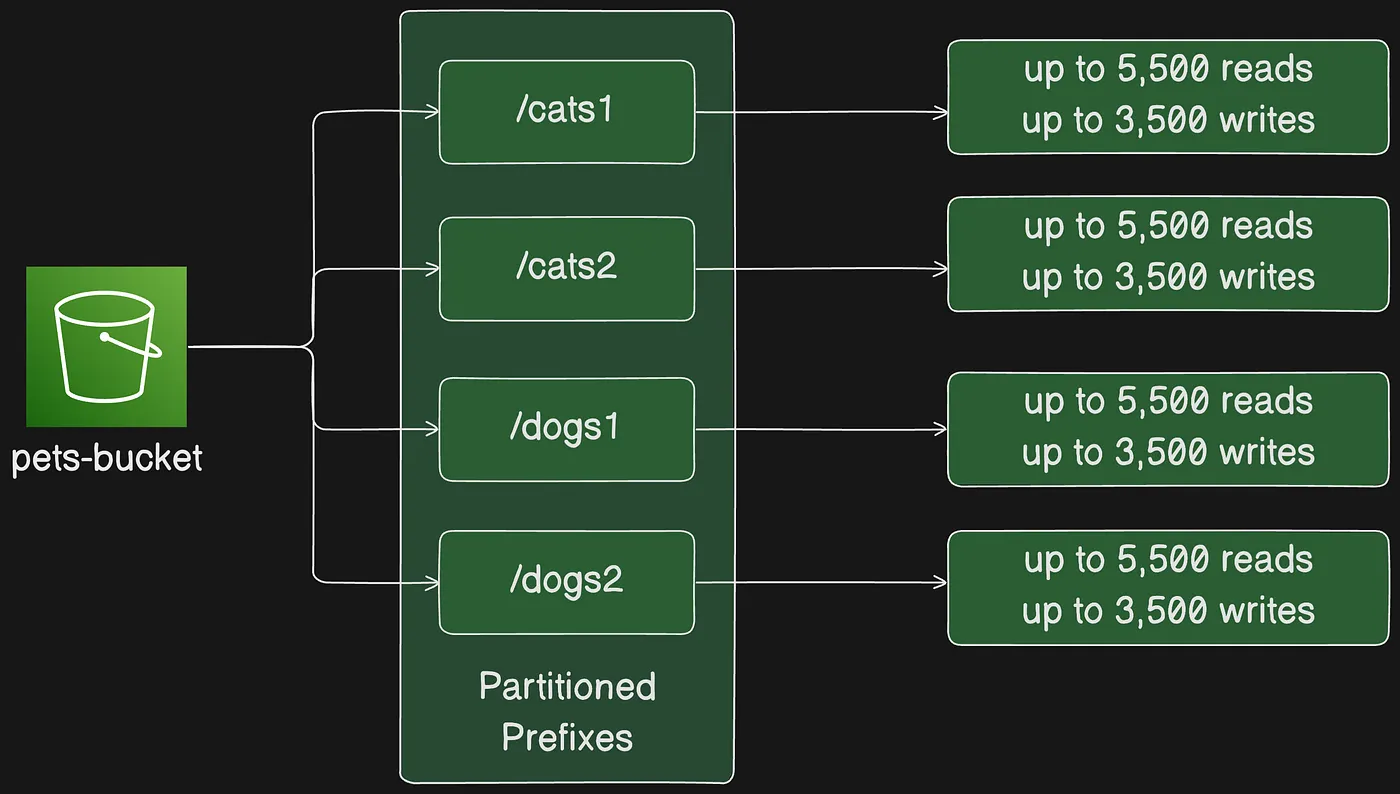 Each prefix is partitioned to scale request rate in parallel
Some data lake applications on Amazon S3 scan millions or billions of objects for queries that run over petabytes of data. These data lake applications achieve single-instance transfer rates that maximize the network interface use for their Amazon EC2 instance, which can be up to 100 Gb/s on a single instance. These applications then aggregate throughput across multiple instances to get multiple terabits per second.
Other applications are sensitive to latency, such as social media messaging applications. These applications can achieve consistent small object latencies (and first-byte-out latencies for larger objects) of roughly 100–200 milliseconds.
Other AWS services can also help accelerate performance for different application architectures. For example, if you want higher transfer rates over a single HTTP connection or single-digit millisecond latencies, use Amazon CloudFront or Amazon ElastiCache for caching with Amazon S3.
Performance guidelines for Amazon S3
Scale storage connections horizontally
Spreading requests across many connections is a common design pattern to horizontally scale performance. When you build high performance applications, think of Amazon S3 as a very large distributed system, not as a single network endpoint like a traditional storage server. You can achieve the best performance by issuing multiple concurrent requests to Amazon S3. Spread these requests over separate connections to maximize the accessible bandwidth from Amazon S3. Amazon S3 doesn’t have any limits for the number of connections made to your bucket.
Use byte-range fetches
Using the Range HTTP header in a GET Object request, you can fetch a byte-range from an object, transferring only the specified portion. You can use concurrent connections to Amazon S3 to fetch different byte ranges from within the same object. This helps you achieve higher aggregate throughput versus a single whole-object request. Fetching smaller ranges of a large object also allows your application to improve retry times when requests are interrupted.
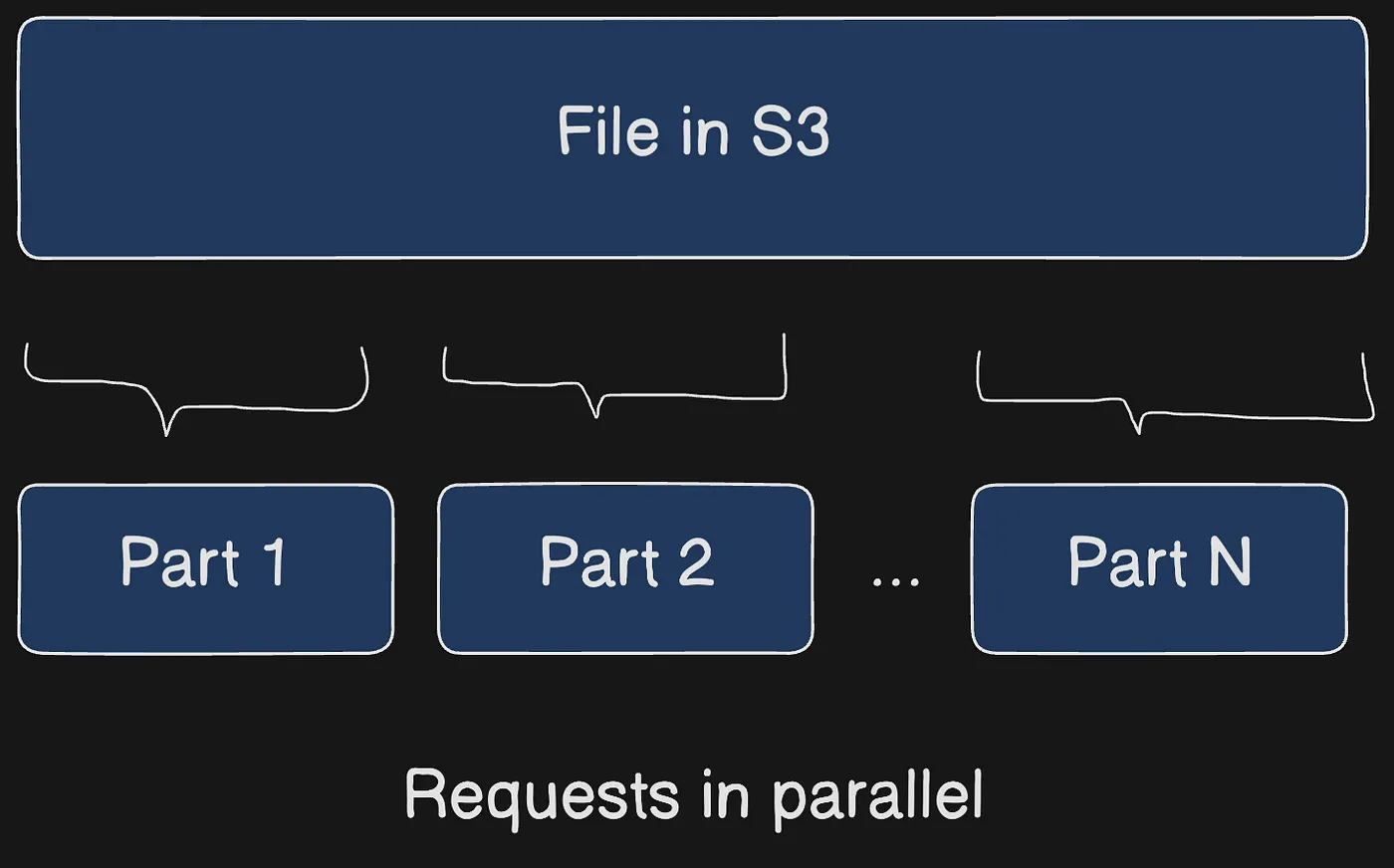 Fetching multiple byte-ranges from the same object in parallel to increase throughput
Typical sizes for byte-range requests are 8 MB or 16 MB. If objects are PUT using a multipart upload, it’s a good practice to GET them in the same part sizes (or at least aligned to part boundaries) for best performance. GET requests can directly address individual parts; for example, GET ?partNumber=N.
The second use-case in which S3 Byte-Range Fetches could be used is to retrieve only partial data. For example, when you know the first XX bytes is the header of a file, in this case, it could be used.
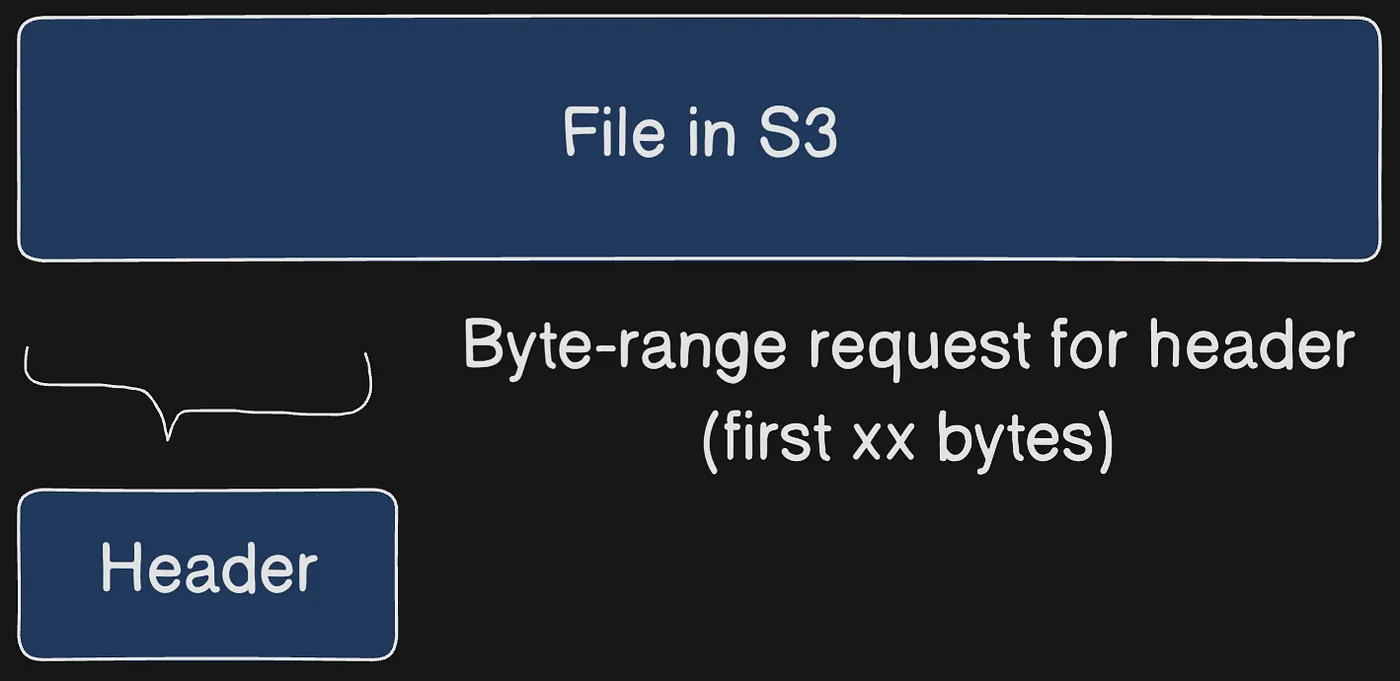 A byte-range request fetches only the file header instead of the whole object
Retry requests for latency-sensitive applications
Aggressive timeouts and retries help drive consistent latency. Given the large scale of Amazon S3, if the first request is slow, a retried request is likely to take a different path and quickly succeed. The AWS SDKs have configurable timeout and retry values that you can tune to the tolerances of your specific application.
Combine Amazon S3 (Storage) and Amazon EC2 (compute) in the same AWS Region
Although S3 bucket names are globally unique, each bucket is stored in a Region that you select when you create the bucket. To optimize performance, It is recommended that you access the bucket from Amazon EC2 instances in the same AWS Region when possible. This helps reduce network latency and data transfer costs.
Use Amazon S3 Transfer Acceleration to minimize latency caused by distance
Configuring fast, secure file transfers using Amazon S3 Transfer Acceleration manages fast, easy, and secure transfers of files over long geographic distances between the client and an S3 bucket. Transfer Acceleration takes advantage of the globally distributed edge locations in Amazon CloudFront . As the data arrives at an edge location, it is routed to Amazon S3 over an optimized network path. Transfer Acceleration is ideal for transferring gigabytes to terabytes of data regularly across continents. It’s also useful for clients that upload to a centralized bucket from all over the world.
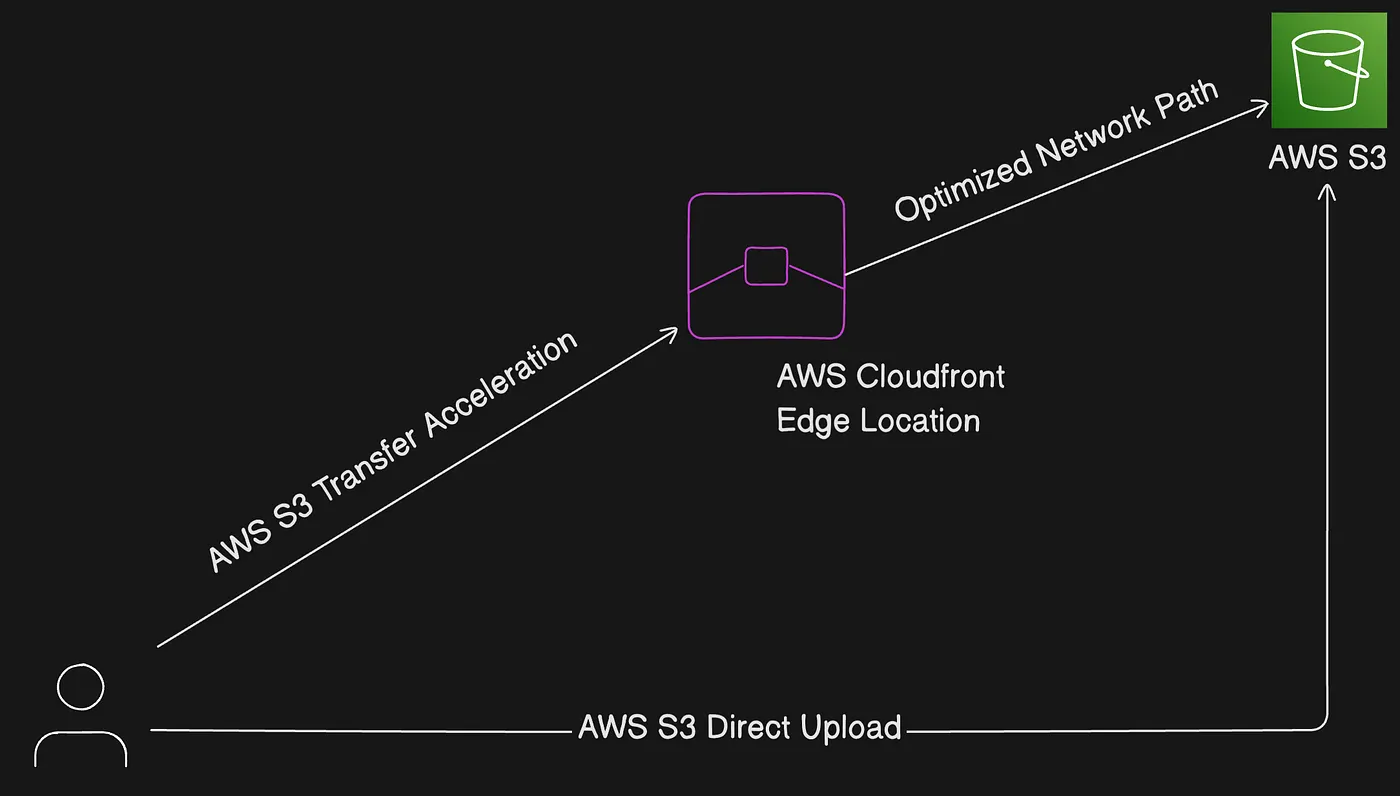 Transfer Acceleration routes data through edge locations then to S3 over an optimized path
You can use the Amazon S3 Transfer Acceleration Speed comparison tool to compare accelerated and non-accelerated upload speeds across Amazon S3 Regions. The Speed Comparison tool uses multipart uploads to transfer a file from your browser to various Amazon S3 Regions with and without using Amazon S3 Transfer Acceleration.
 CloudFront's network of edge locations spread across the globe
Use the latest version of the AWS SDKs
The AWS SDKs provide built-in support for many of the recommended guidelines for optimizing Amazon S3 performance. The SDKs provide a simpler API for taking advantage of Amazon S3 from within an application and are regularly updated to follow the latest best practices. For example, the SDKs include logic to automatically retry requests on HTTP 503 errors and are investing in code to respond and adapt to slow connections.
Conclusion
AWS S3 is an extensive and complex service. While this article has aimed to cover its most critical aspects, we encourage you to delve further into the official documentation for a deeper understanding of specific topics.
AWS S3 is a cornerstone of modern cloud storage, providing unmatched scalability, durability, and flexibility for a wide range of use cases. From storing static website assets to managing big data lakes, S3 offers features that cater to developers, businesses, and enterprises alike. Its tight integration with other AWS services, such as Lambda, Glue, and Kinesis, enables seamless workflows and powerful automation capabilities.